theSimCal · User Guide
thesimcal.com · Last updated July 2026

Browsing the Calendar
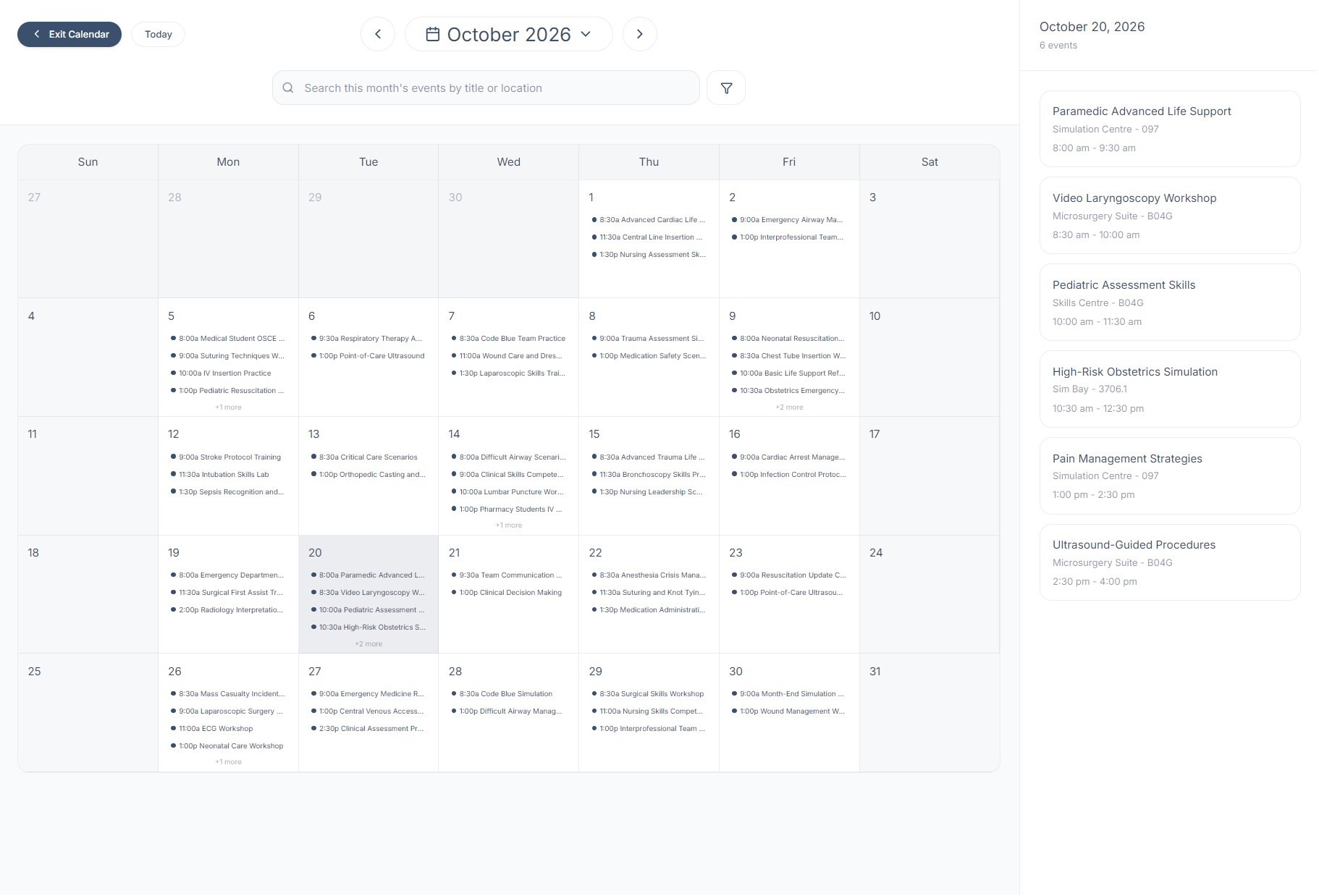
The Calendar shows the sessions already scheduled at your center, useful for checking what's on before you request a time of your own. Open it from the ‘Calendar’ button in the top menu bar of the booking screen. It's view-only: bookings are always made through a booking request, not from the calendar.
Finding your way around
- Move between months with the ‹ and › arrows beside the month name.
- ‘Today’ (top left) jumps back to the current month.
- Select any day to open its schedule in the panel on the right. Each event lists its title, room, and time.
- Busy days show their first few events with a + more label. Select the day to see the rest in the panel.
- ‘Exit Calendar’ (top left) returns you to the booking screen.
Search & filter by room
- The search bar searches the displayed month's events by title or location as you type.
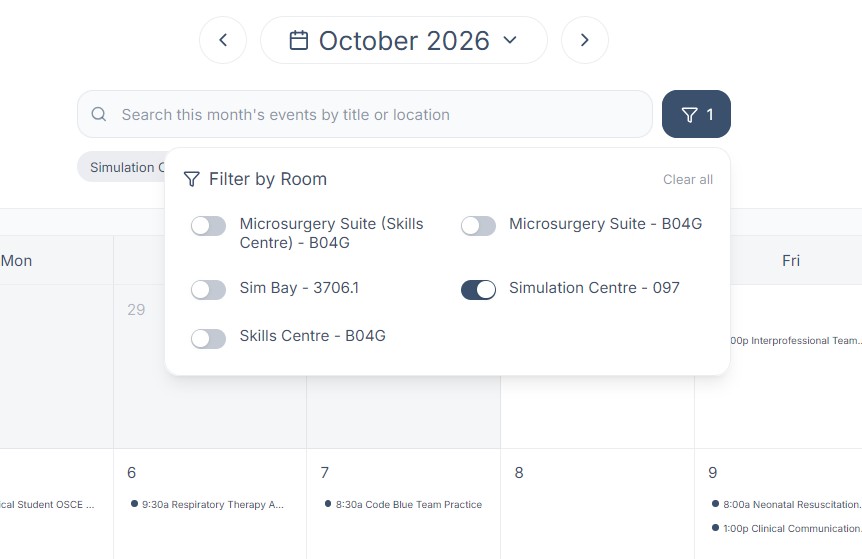
- The filter button (right of the search bar) opens ‘Filter by Room’. Toggle one or more rooms on to show only their events. The button shows how many filters are active.
- Active room filters also appear as chips beneath the search bar. ‘Clear all’ removes every filter at once.