Staff & Admin Guide
For staff and admin accountsLast updated October 23, 2026
Everything staff and admins need to run theSimCal day to day: processing booking requests, managing the calendar, reviewing feedback and analytics, and setting up your center. Chapters in the Administration part apply to admin accounts only.
Contents
Select a chapter to jump straight to it.
Chapter 1 · Daily work
ContentsProcessing Requests
Every booking request arrives as a New Request. Staff review it, adjust the details if needed, assign people and equipment, and then approve it, keep it pending, or decline it. The requester is emailed at each decision. Open incoming requests from Requests in the sidebar.
The Requests list
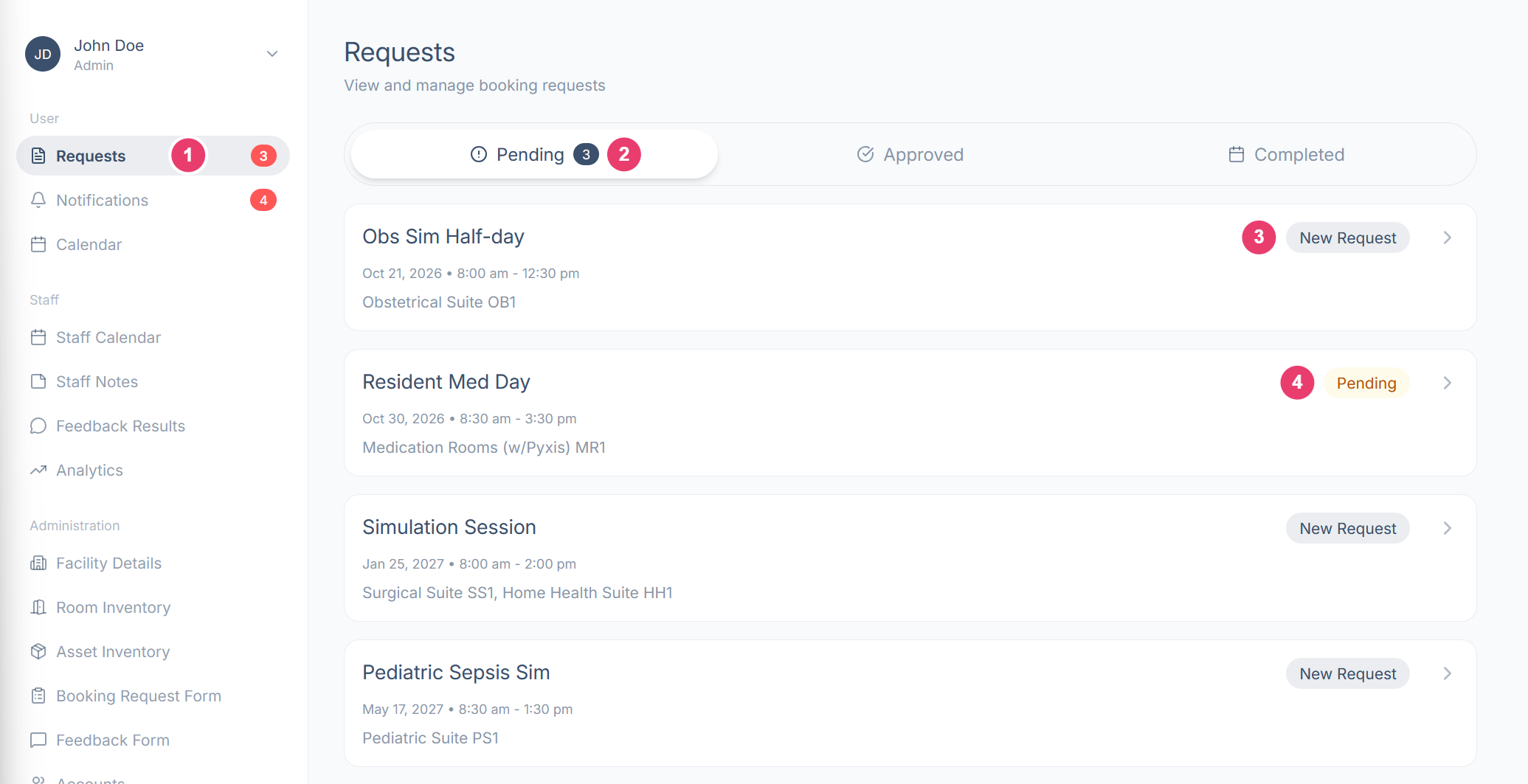
Select a request to open it.
Reviewing and editing a request
The request opens with its details split into sections. Select the pencil icon on any section to edit it. Select Save to keep your changes, or Cancel to discard them.
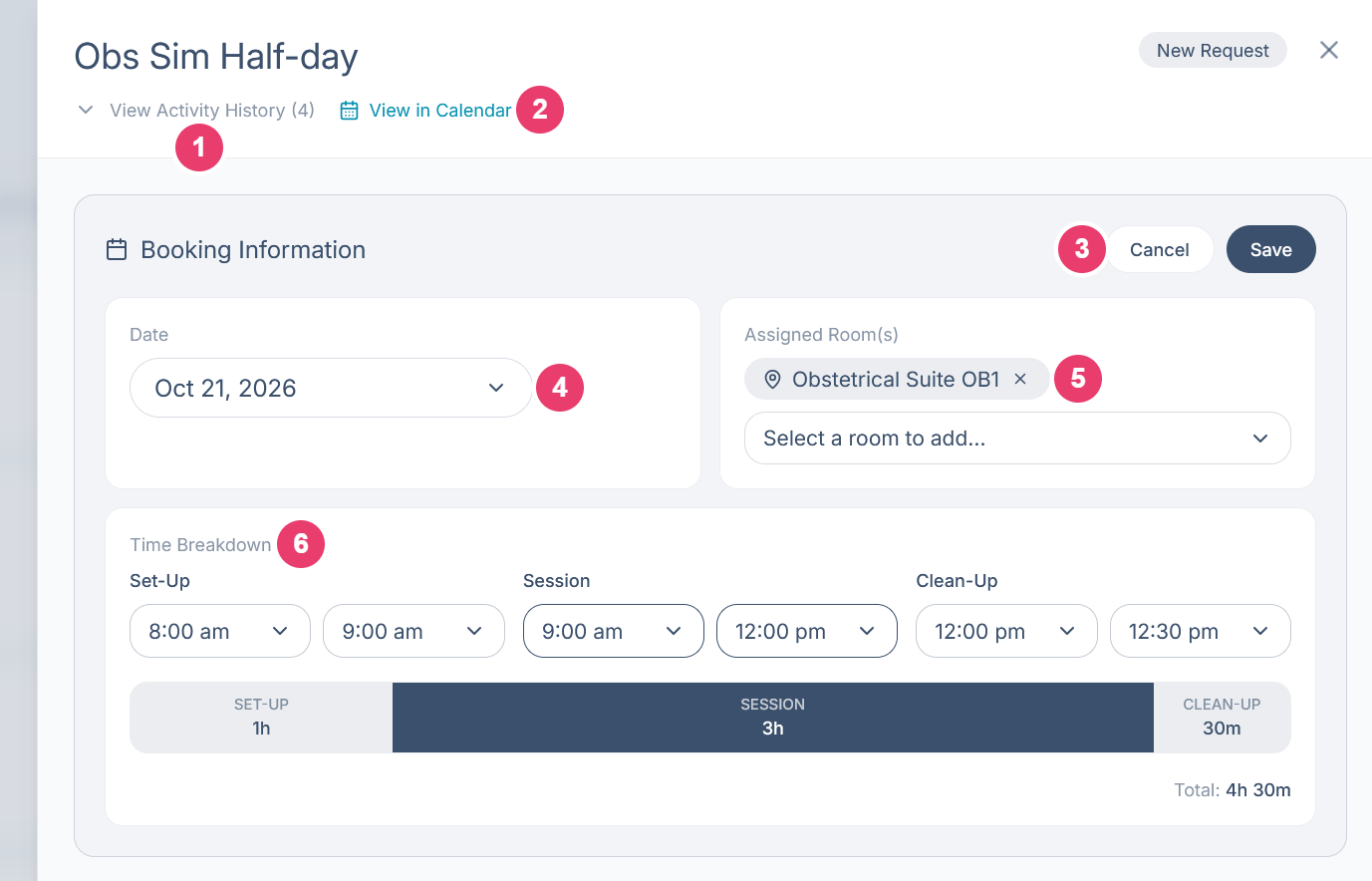
Below Booking Information, two more sections can be edited the same way:
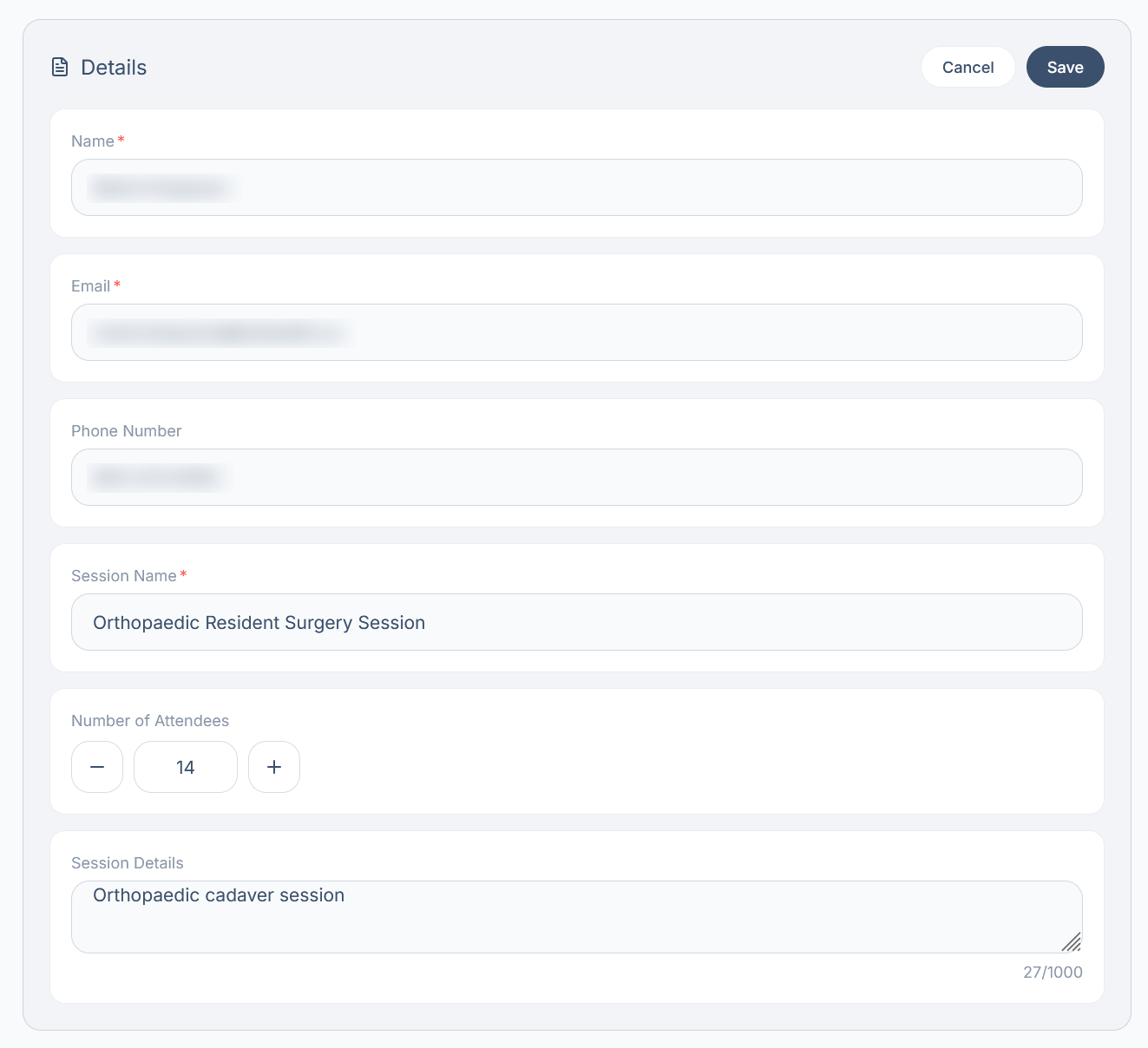
Details: The requester’s name, email and phone number, plus the session name, number of attendees and session details.
Additional Information: The requester’s answers to your custom questions from the Booking Request Form.
Assigning people and equipment
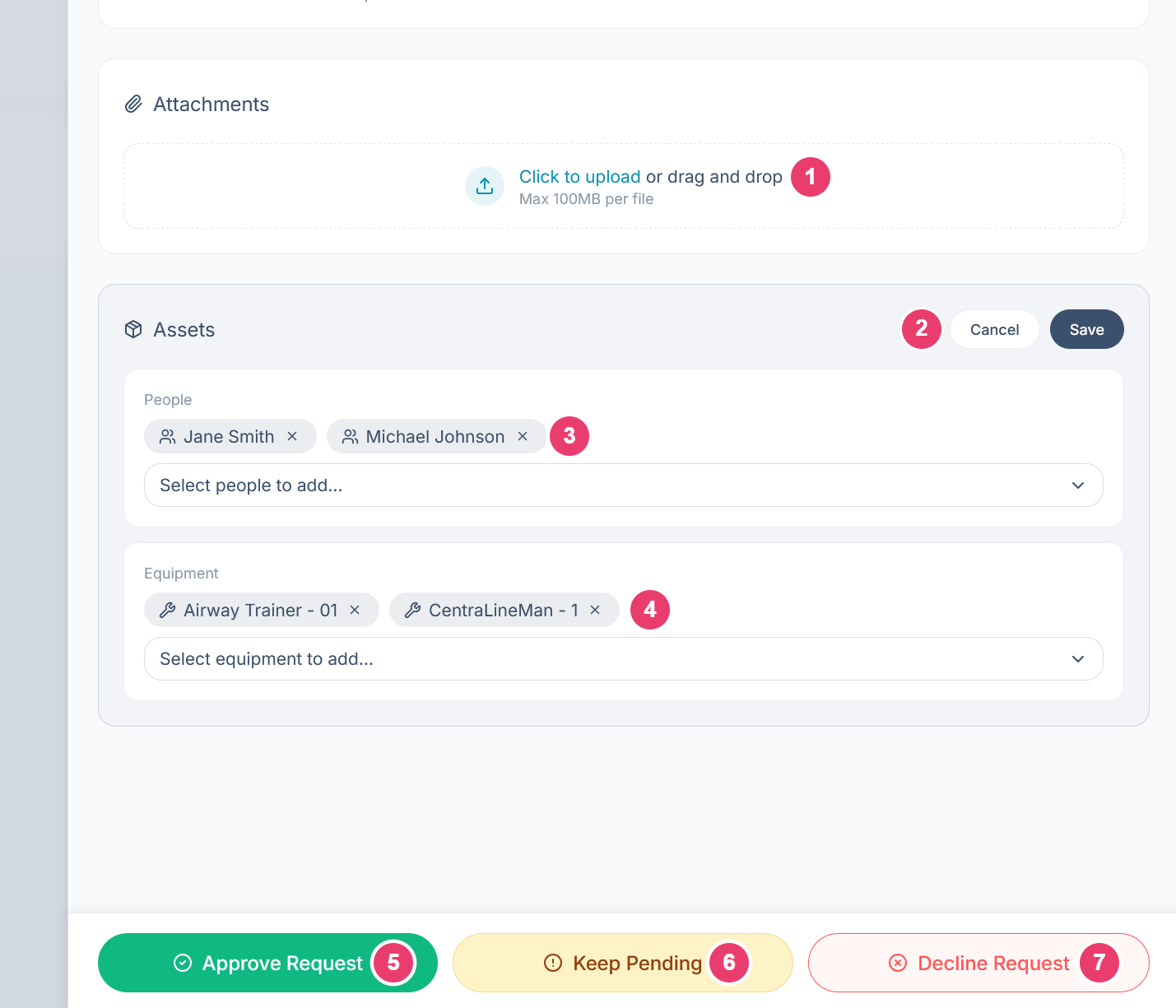
Approving, keeping pending, or declining
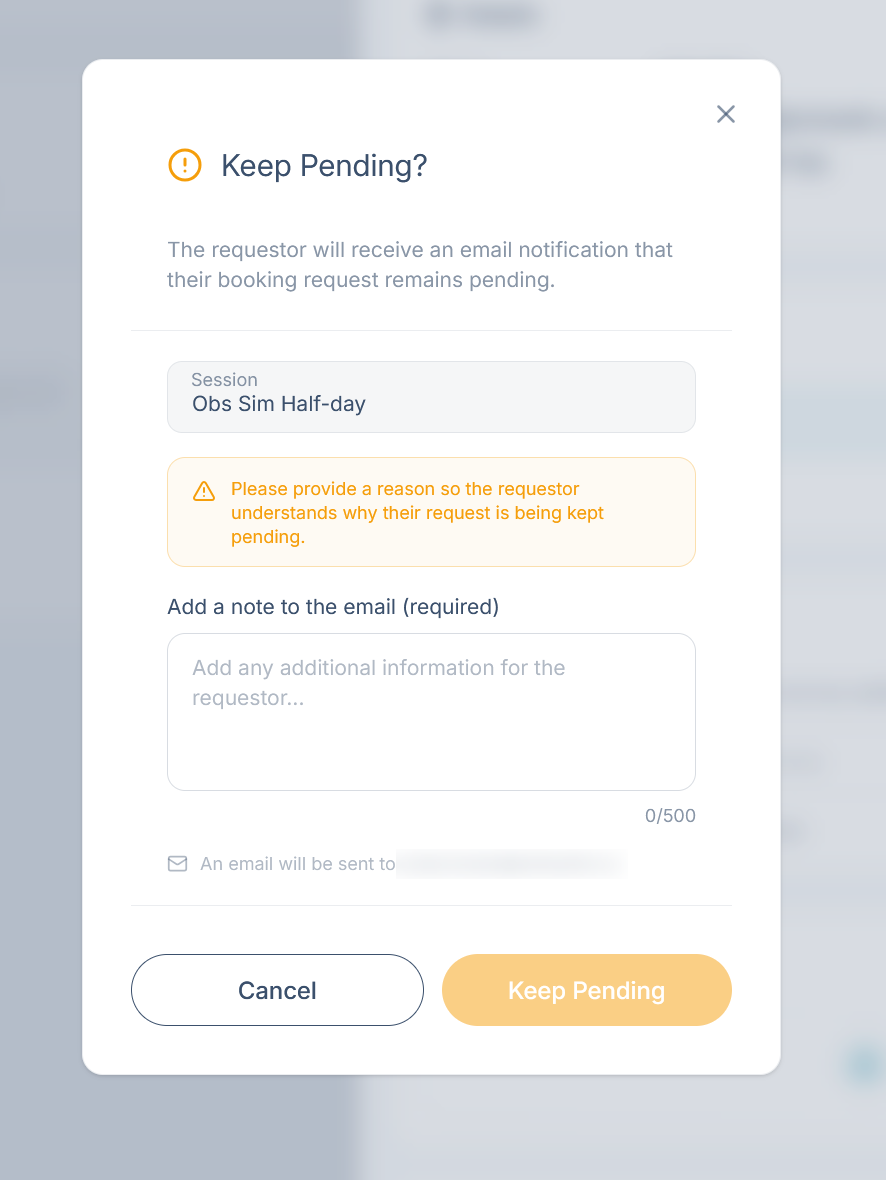
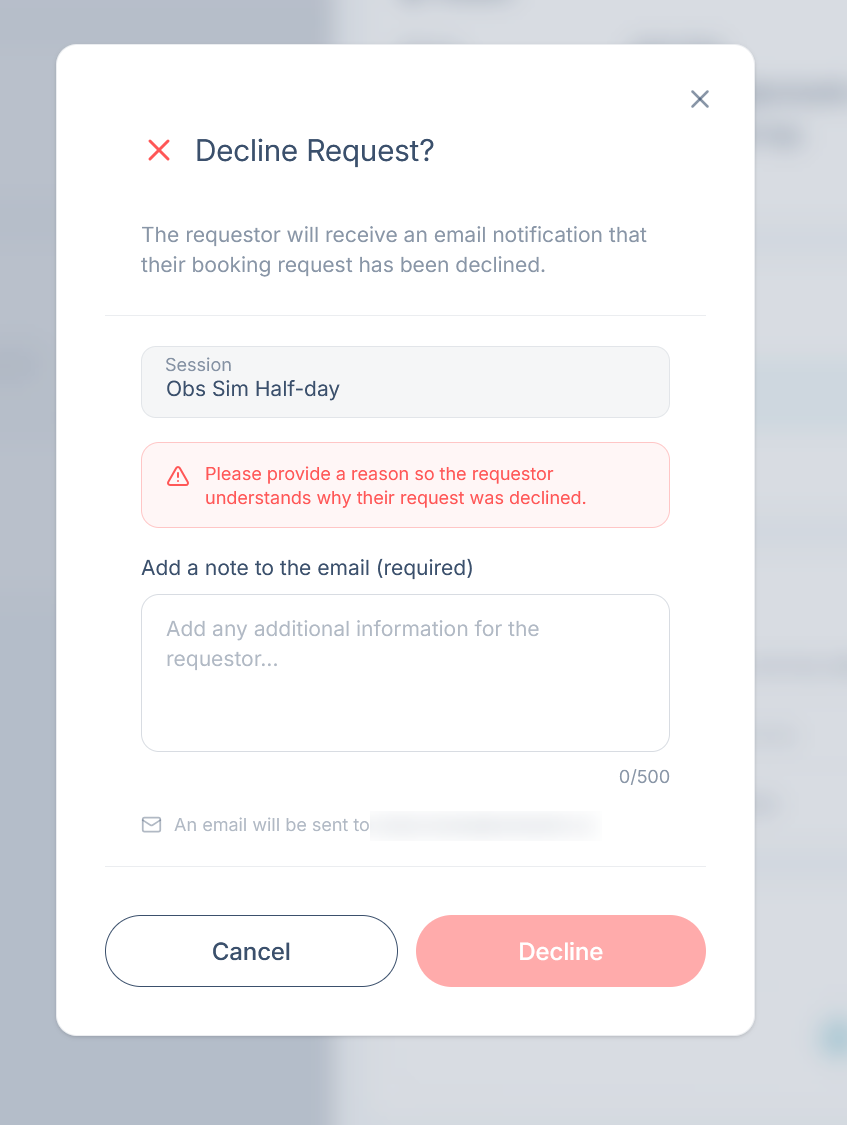
When the details are right, use the buttons at the bottom of the request. Each one opens a confirmation box with the session name and a note field. The note is added to the email sent to the requester, whose address is shown below it.
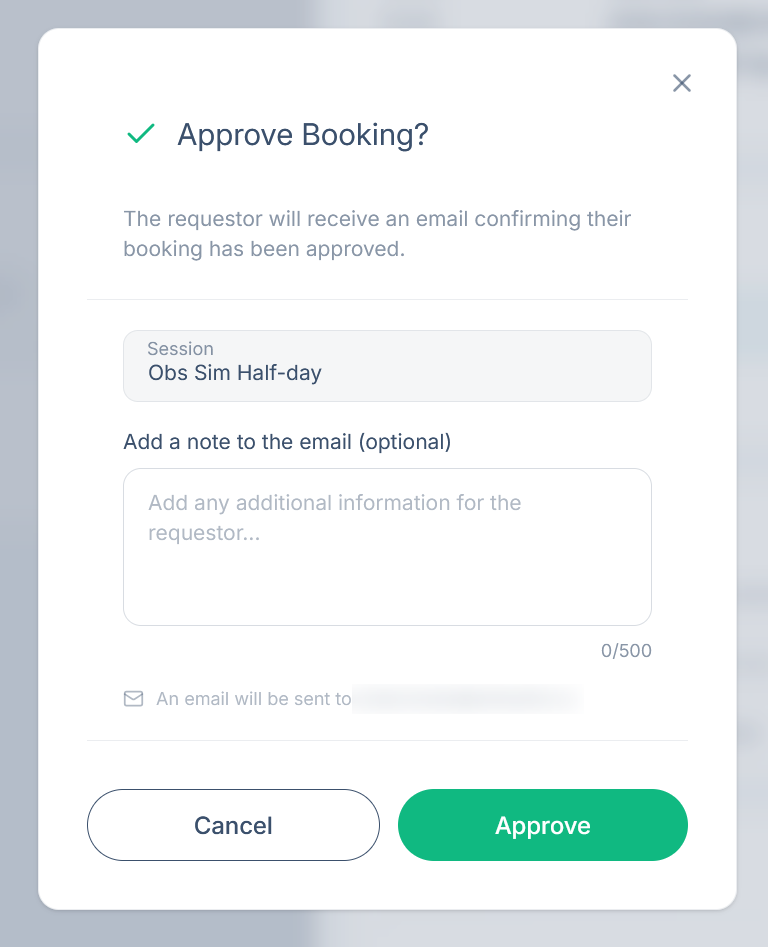
Approve: The requester is emailed that their booking is confirmed. Adding a note is optional.
Keep Pending: Use this when the requester has not given enough information to approve the request. The note is required, so tell them exactly what you need. The request’s status changes to Pending.
Decline: The requester is emailed that their request has been declined. The note is required, so explain why.
Chapter 2 · Daily work
ContentsStaff Calendar
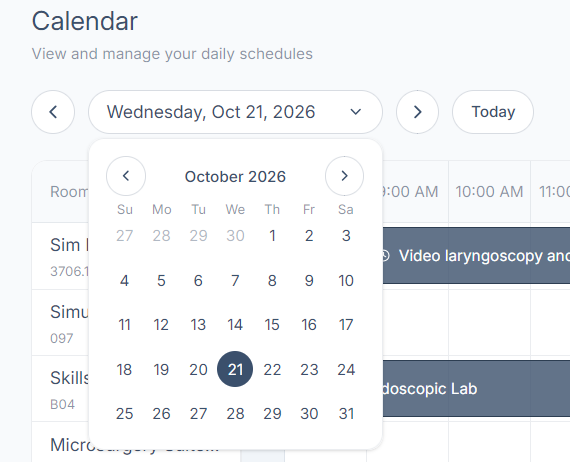
The Staff Calendar is your working view of a single day. Every room appears, followed by any equipment and people that are assigned to a session or blocked that day. It is where you check what a day actually looks like. Open it from Staff Calendar in the sidebar, under Staff.
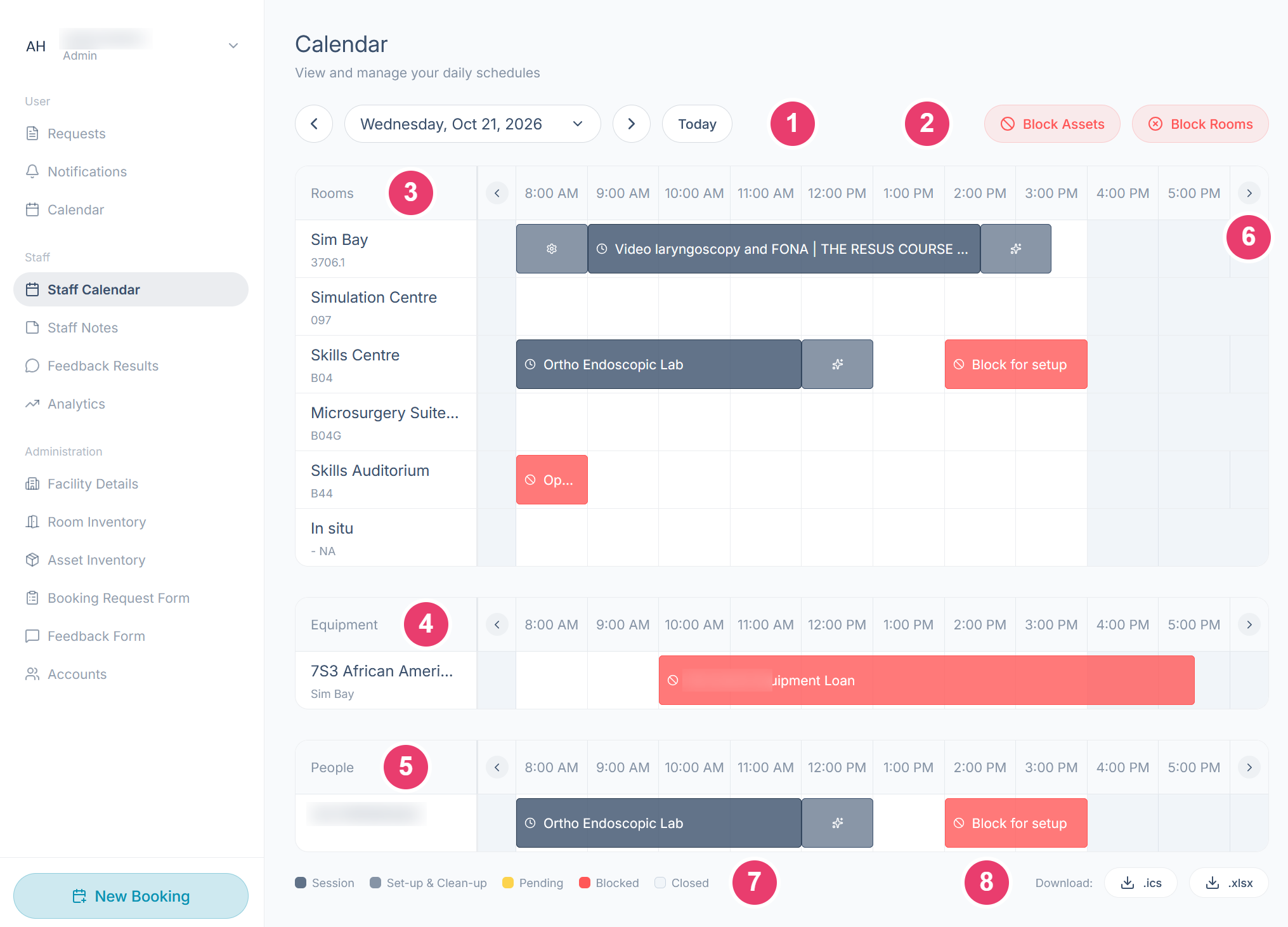
What each area does
What the colors mean
Every block on the calendar is color coded, and the legend runs along the bottom of the screen.
Opening a booking
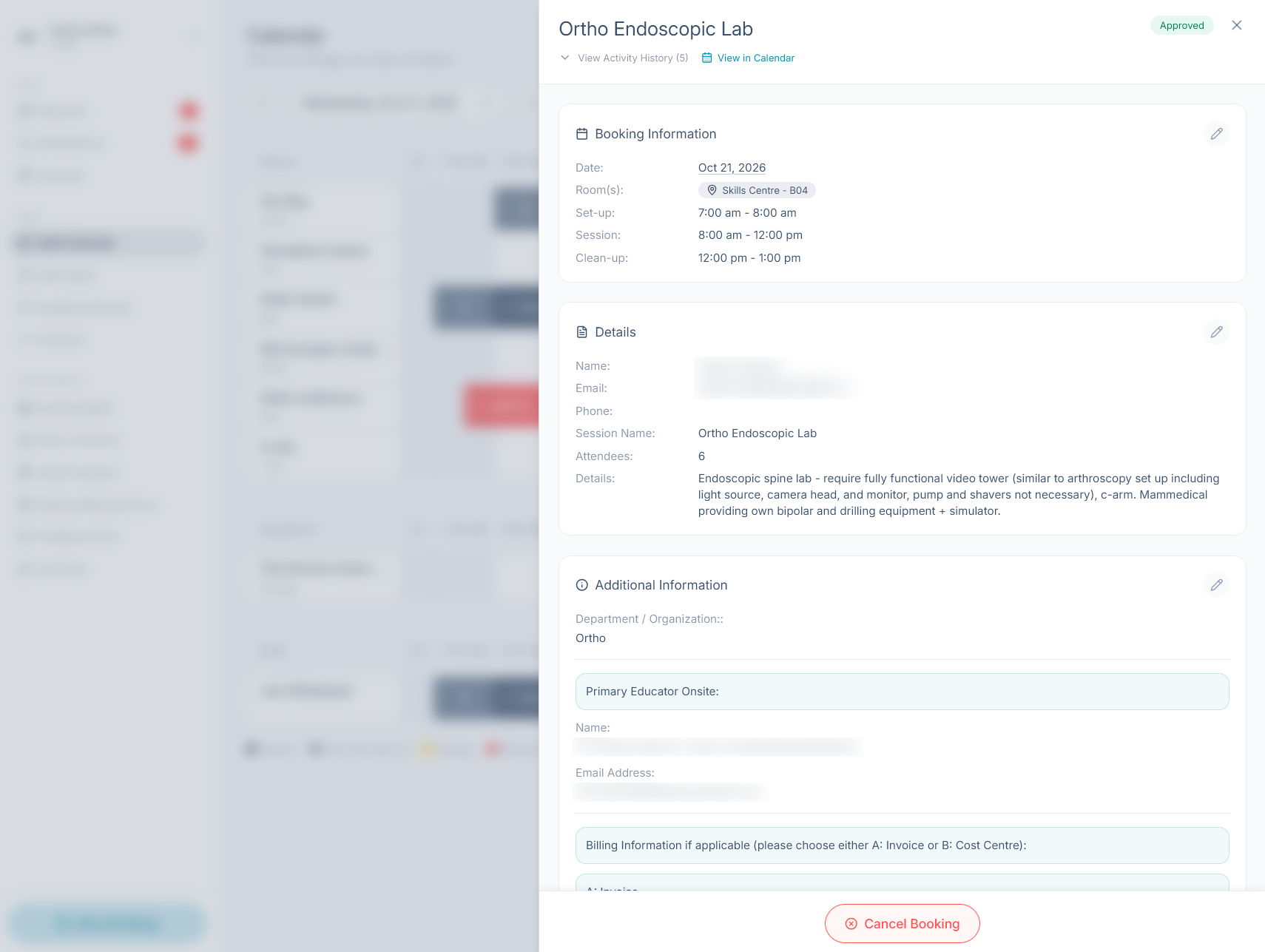
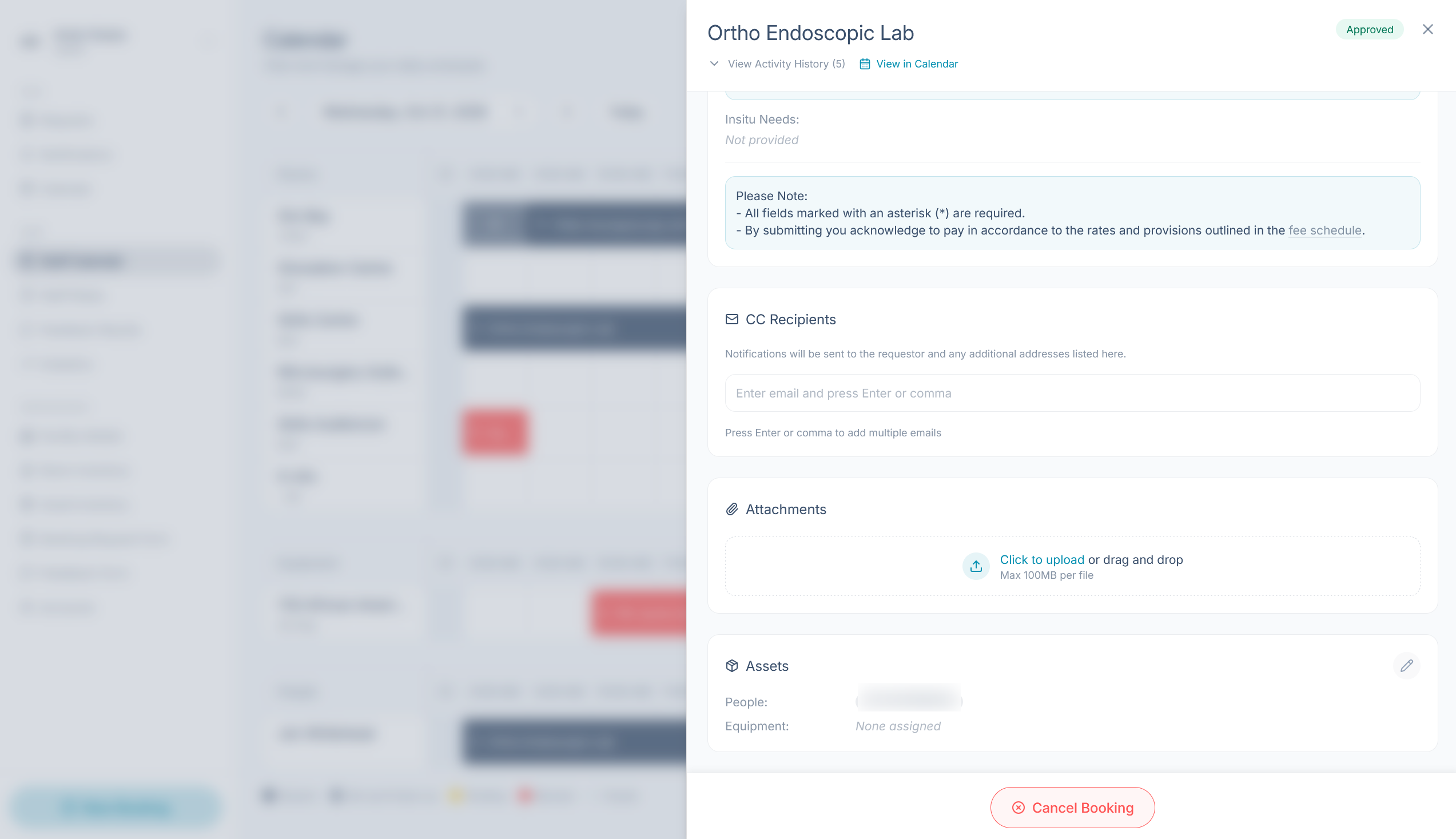
Select any block on the calendar to open it in a panel on the right. Its status appears as a pill in the top corner. The panel works the same way as an open request, covered in Processing Requests. It adds one section:
- CC Recipients adds email addresses that receive the booking's notifications alongside the requester.
Blocking time
Blocking holds time on the calendar without a booking behind it, so a room, a piece of equipment, or a person cannot be booked or assigned. Use it for equipment loans, vacations, maintenance, holidays, or anything else unrelated to a session. If an asset is needed for a session, assign it in the booking's Assets section instead.
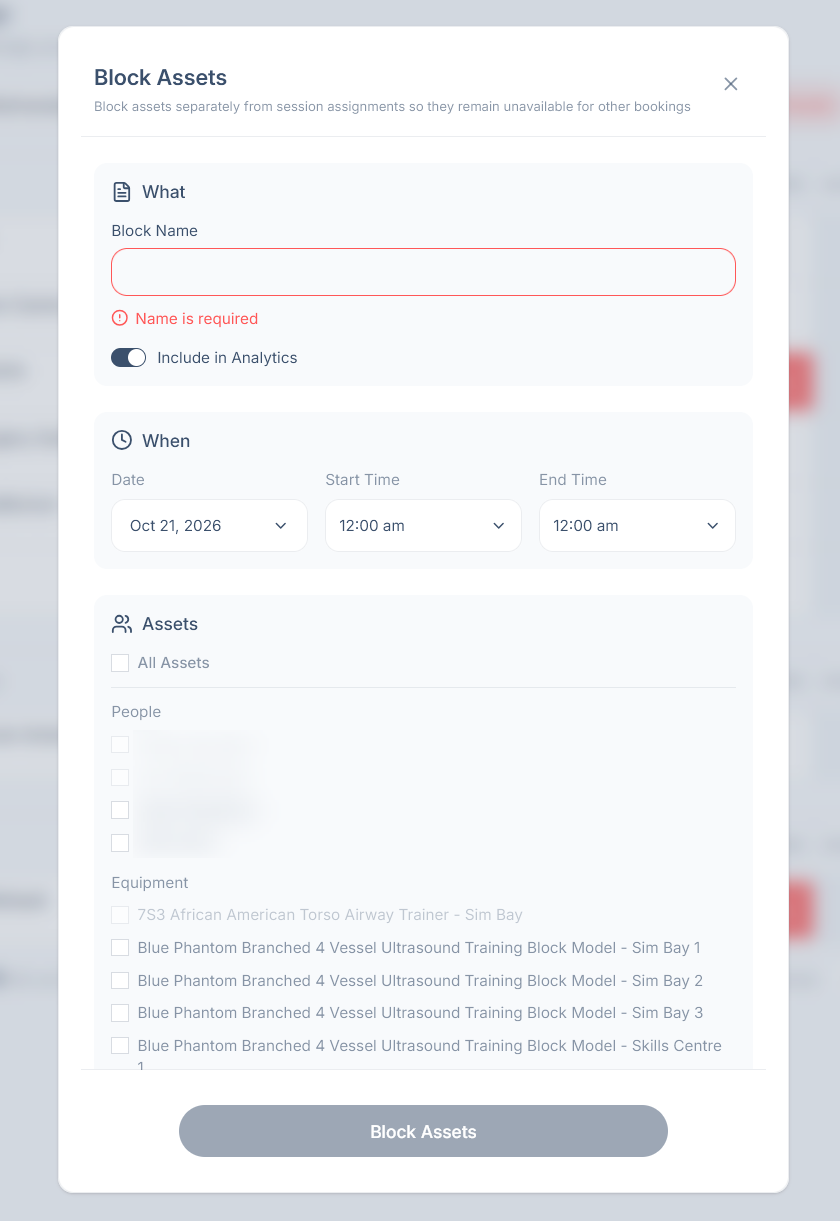
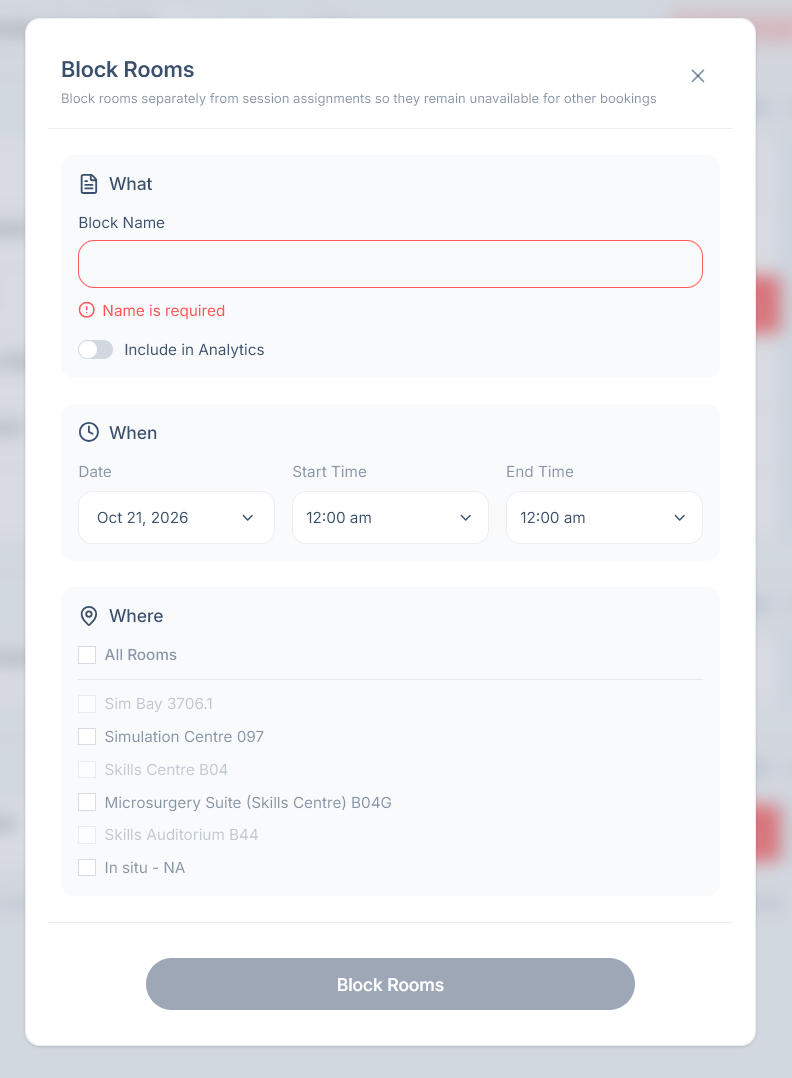
- Select Block Rooms or Block Assets, top right. Rooms are blocked separately from equipment and people, so use whichever matches what you need to hold. To hold both, create one block of each.
- Give the block a name. This is required, and it is the label that appears on the calendar, so make it something a colleague will understand at a glance.
- Decide whether to Include in Analytics.
- Set the date, start time, and end time.
- Select what to block. All Rooms or All Assets selects everything at once, or select individual rooms, people, and equipment. Anything grayed out is already booked or blocked during the times you chose.
- Select Block Rooms or Block Assets at the bottom to save.
Exporting the schedule
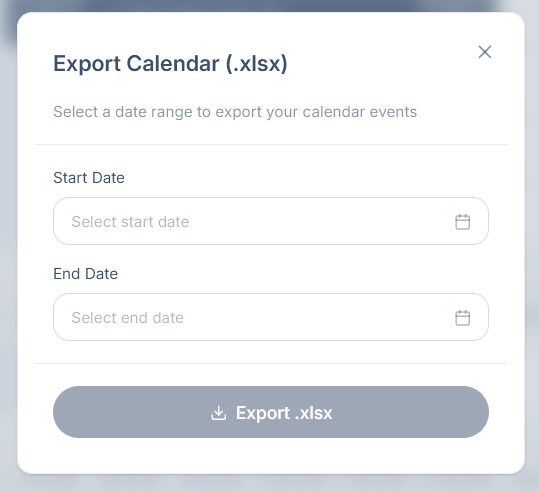
The Download buttons in the bottom right corner export your calendar events. Both ask for a start and end date, so you can export a whole stretch of time rather than only the day on screen.
- .ics imports into Outlook, Google Calendar, and Apple Calendar.
- .xlsx opens in Excel, useful for reporting or sharing a schedule with someone who does not use theSimCal.
How this differs from the Calendar
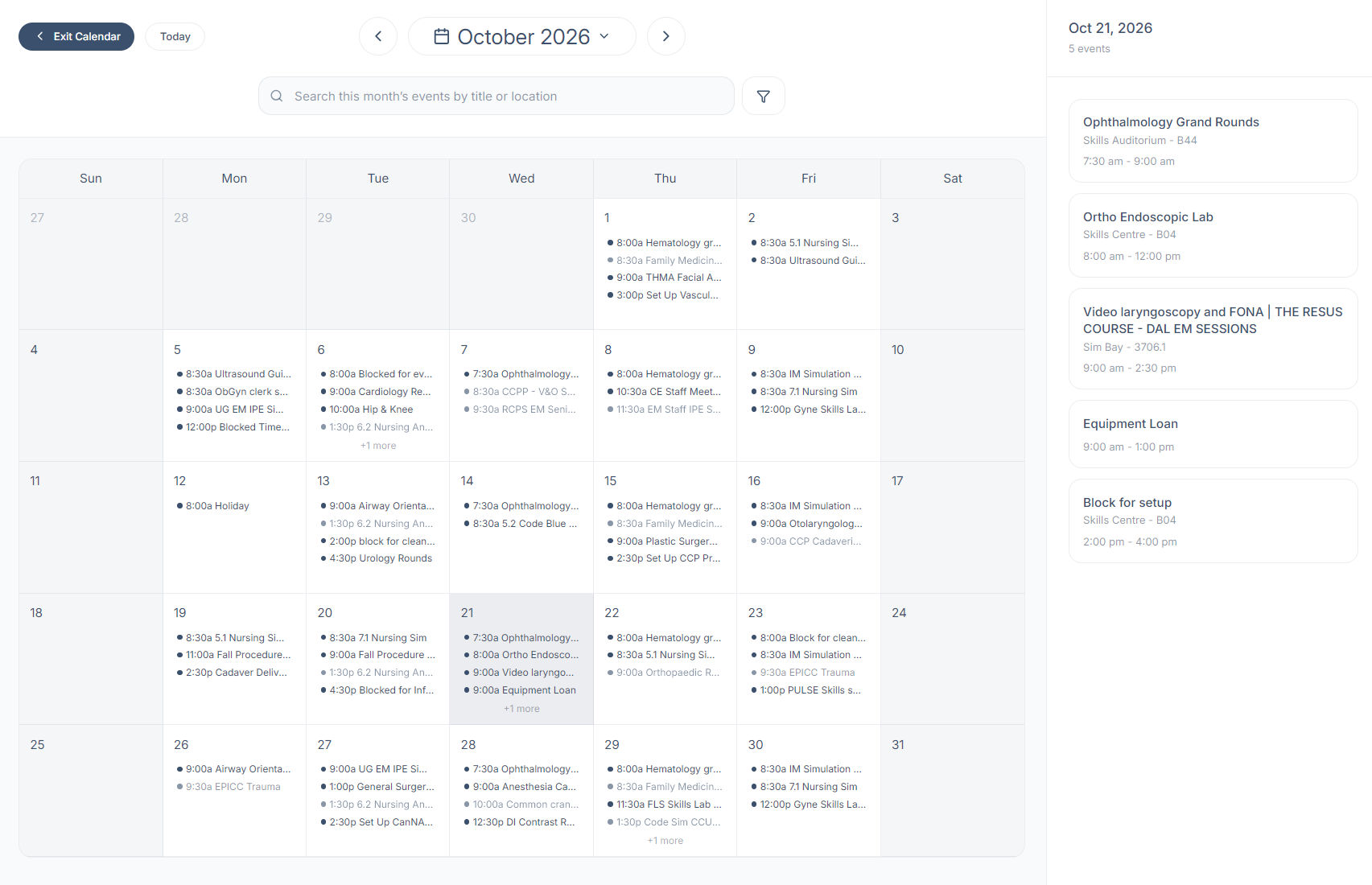
There are two calendars in theSimCal and they do different jobs. Calendar, under User in the sidebar, is the month view your requesters see. It is public and view-only, so nothing can be added, edited, or blocked from it. The Staff Calendar is the one you work in.
Chapter 3 · Daily work
ContentsStaff Notes
Staff Notes is your team's noticeboard. Post an update, attach a file, ask a question, and reply to each other in one place, without it living in somebody's inbox. It is visible only to staff and admin accounts. Open it from Staff Notes in the sidebar, under Staff.
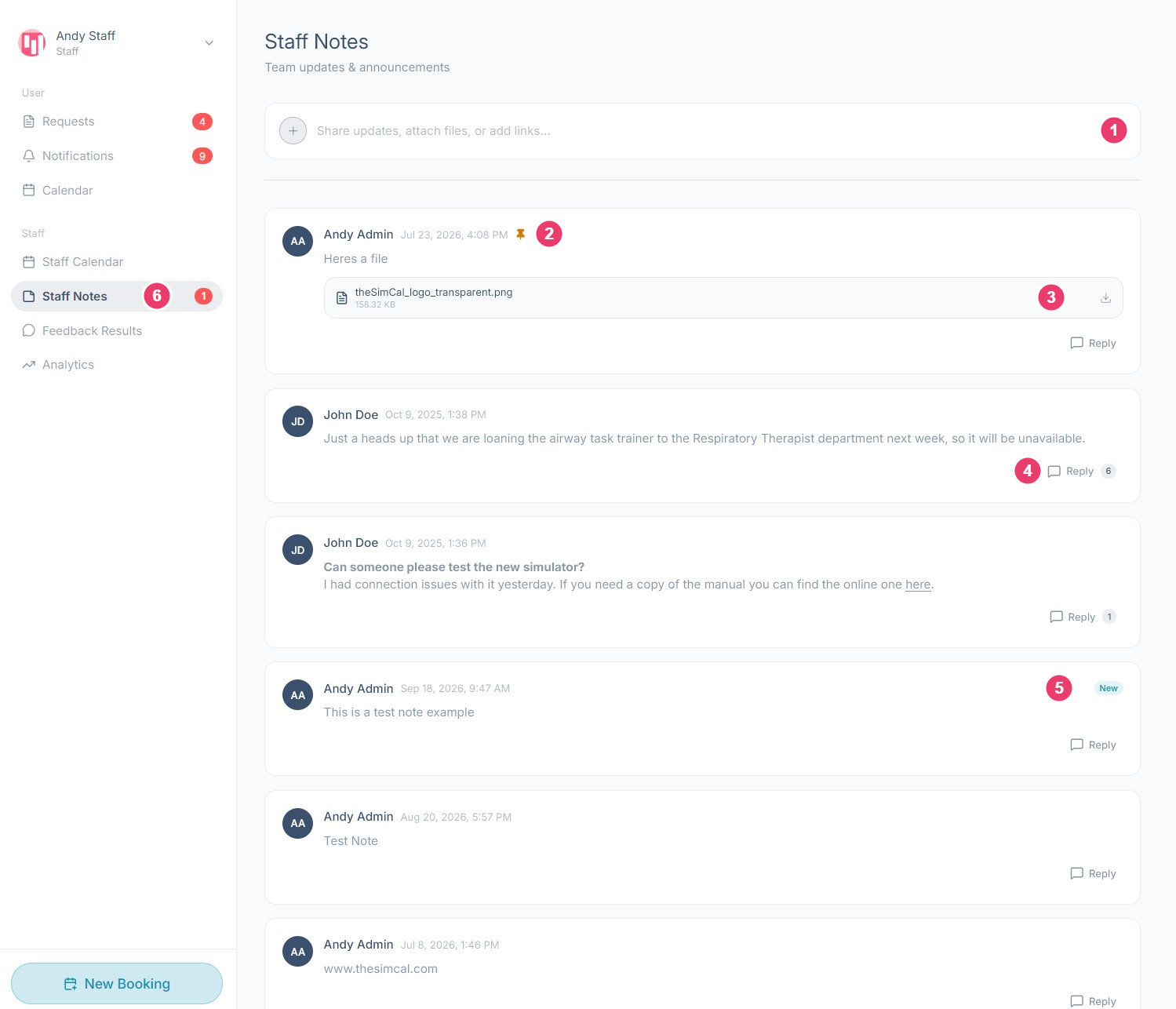
What each area does
Writing a note
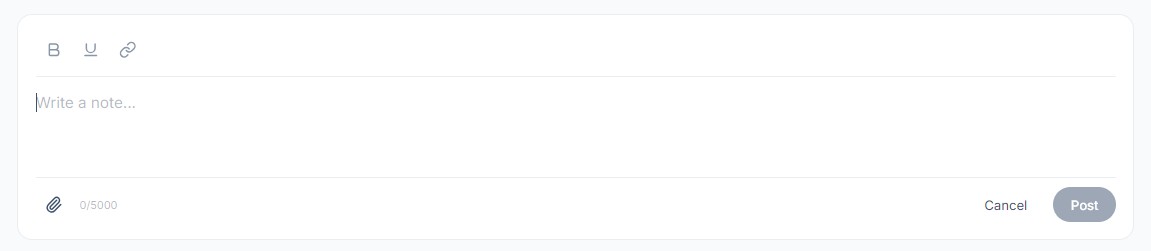
- Select the bar reading ‘Share updates, attach files, or add links...’ at the top of the screen. It expands into the full composer.
- Type your note. The counter in the bottom left shows how much of the 5,000 character limit you have used.
- Format it if you need to. B makes the selected text bold and U underlines it. The link icon turns selected text into a link, which is tidier than pasting a long address.
- Select the paperclip to attach a file, such as a manual, a floor plan, or a photograph of a fault.
- Select Post to publish it, or Cancel to discard it.
Replying to a note
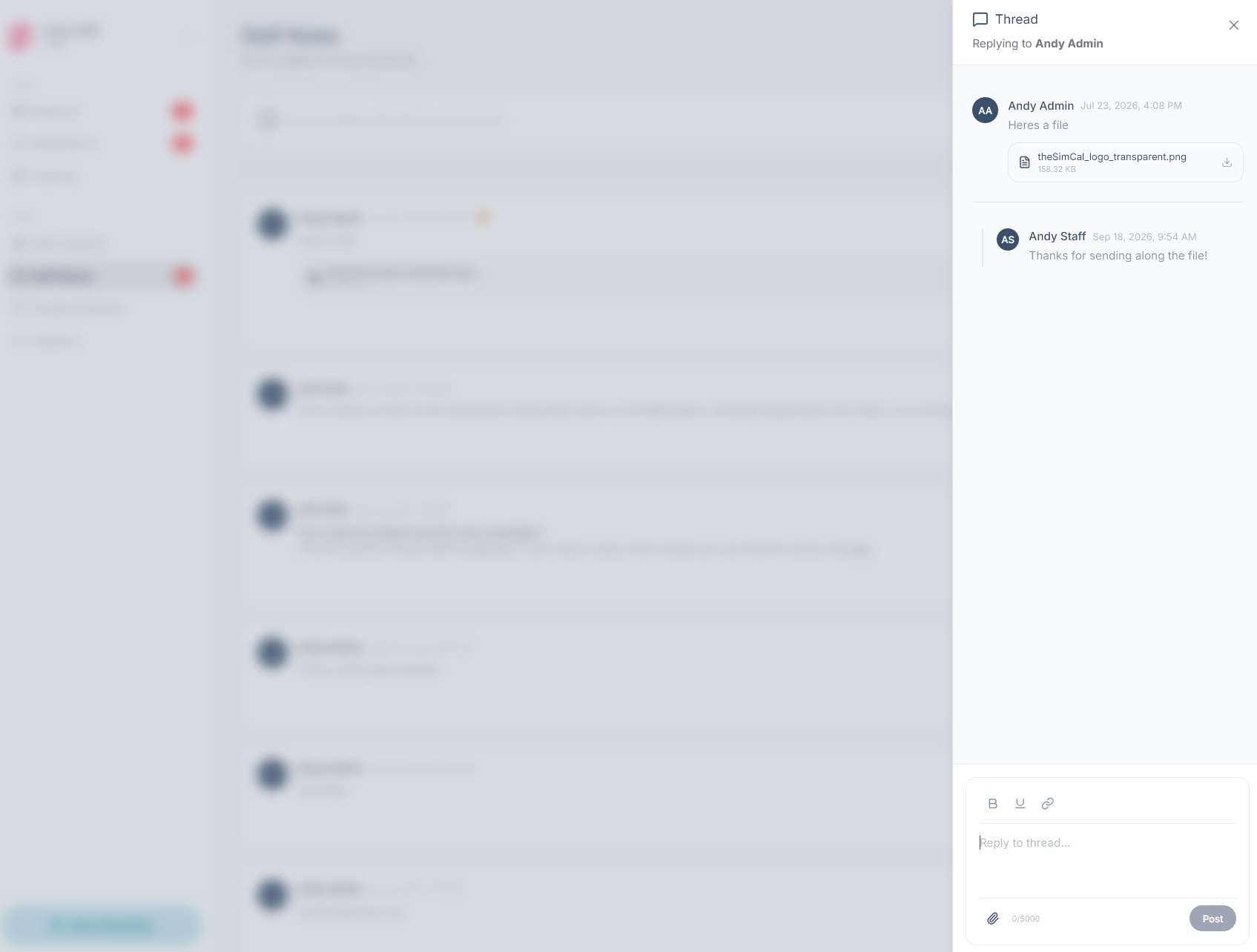
Select Reply at the bottom of a note to open its Thread panel on the right. The original note sits at the top, with its attachments, and every reply is listed beneath it in the order it was posted. Replies stay attached to the note they belong to, so a question and its answers are read together rather than scattered through the list as separate notes. Anyone on the team can reply to any note.
Write your reply in the box at the bottom of the panel. It takes the same formatting, attachments, and 5,000 character limit as a note. Select Post to add it, then the × in the top corner to close the panel.
Pinning and deleting
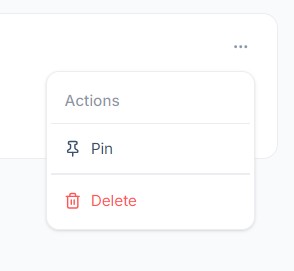
The ... menu in the top right corner of a note holds two actions.
- Pin moves the note to the top of the list and marks it with a pin icon beside the timestamp. Use it for anything the team needs to keep seeing, such as a closure or a policy change.
- Delete removes the note for everyone.
Chapter 4 · Reporting
ContentsFeedback Results
When a session ends, it is marked Completed automatically, and theSimCal can email the requester a short feedback form, if an admin has switched it on in Feedback Form. They rate their experience from one to five and can leave a comment. Feedback Results gathers every response in one place, so you can see how sessions are landing and read what people said. Open it from Feedback Results in the sidebar, under Staff.
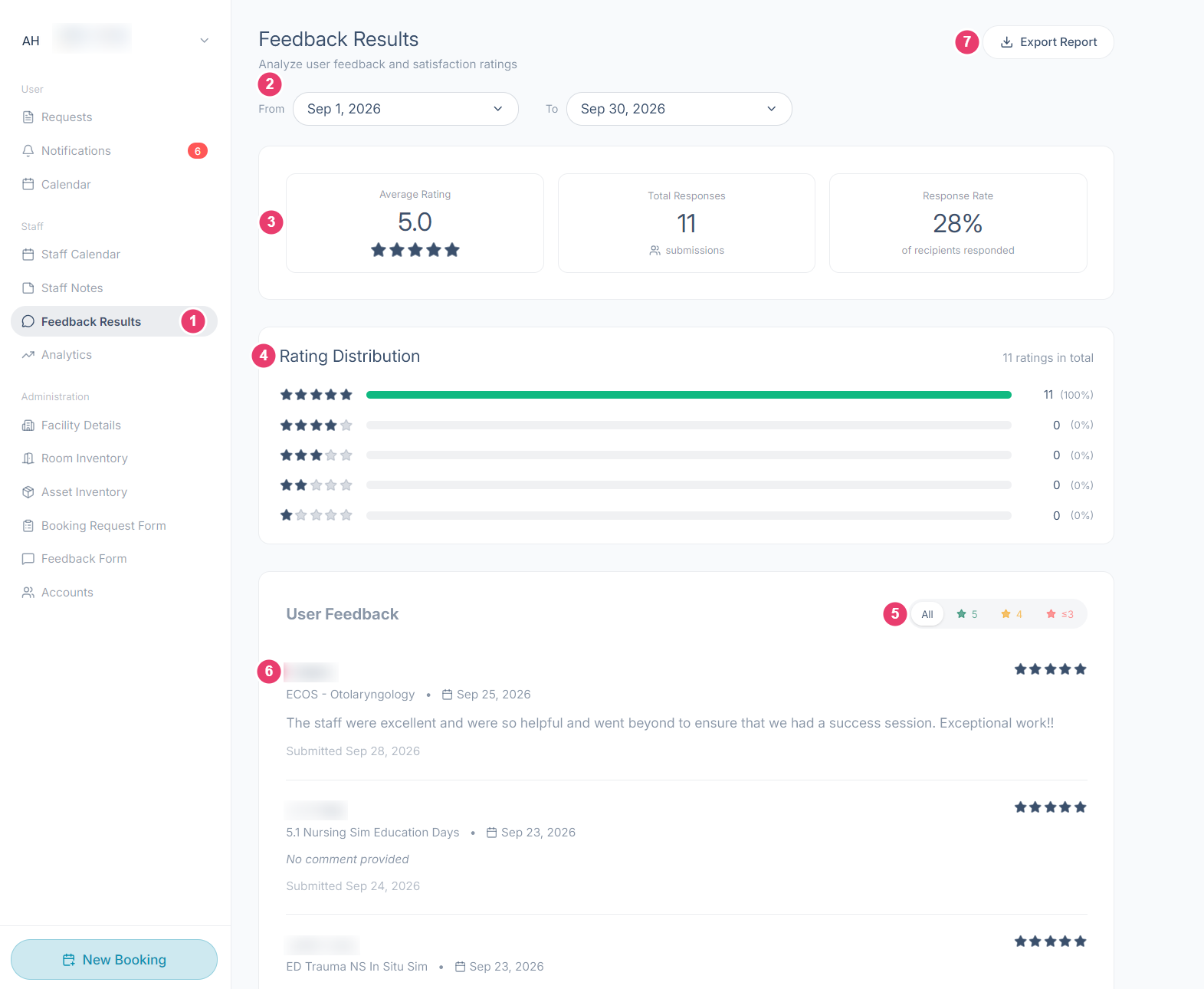
What each area does
Reading the responses
The User Feedback list shows the newest responses first. Each one names the person who sent it and the session it is about, so you can match a comment to the booking behind it. If someone rated the session without writing anything, their response reads No comment provided. It still counts toward the ratings.
To find the responses that need attention, select ≤3 in the rating filter. Select All to go back to the full list.
Chapter 5 · Reporting
ContentsAnalytics
Analytics turns your bookings into numbers you can act on: how many hours your center is booked, which rooms work hardest, which days are busiest, and how much of your equipment and your team’s time each period takes. Use it for annual reports, staffing decisions, and the case for new rooms or equipment. Open it from Analytics in the sidebar, under Staff.
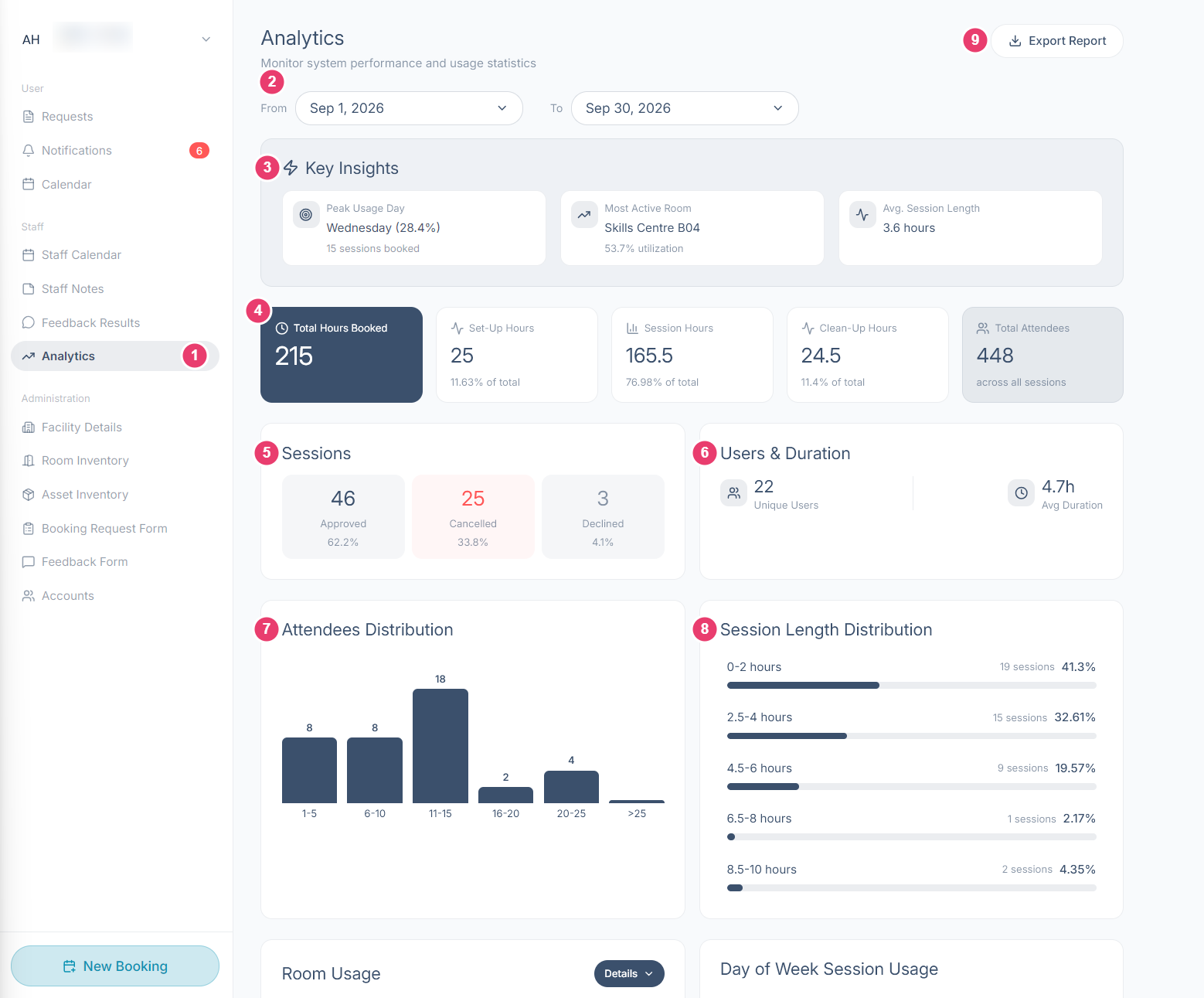
What each area does
How the hours add up
Total Hours Booked is the time your space was held, from the start of set-up to the end of clean-up. It is the sum of the three boxes beside it: Set-Up Hours, Session Hours, and Clean-Up Hours. Each shows its share of the total underneath.
That is why the two averages differ. Avg. Session Length in Key Insights counts session time only. Avg Duration under Users and Duration includes set-up and clean-up, so it is always the longer of the two.
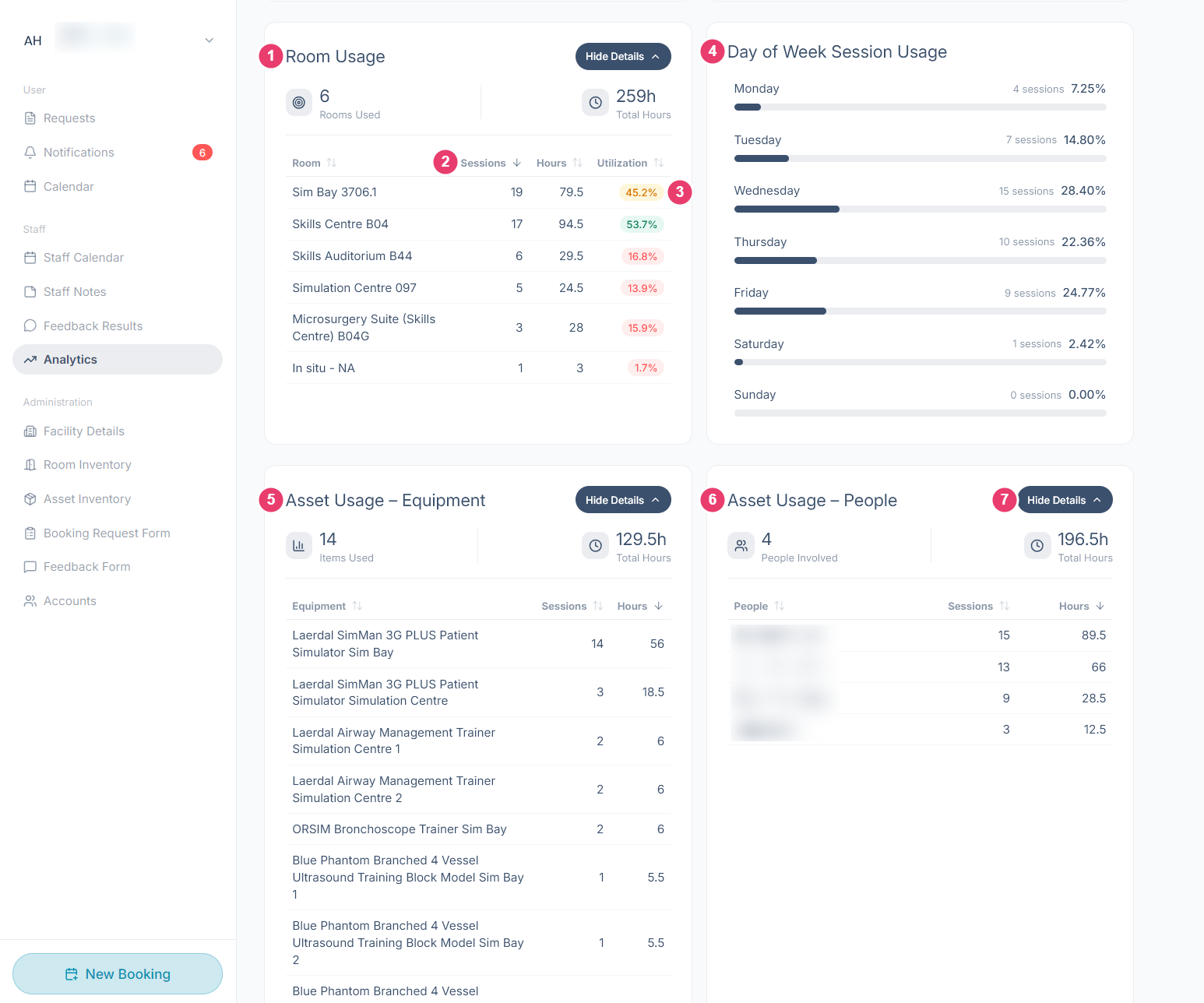
Usage by room, equipment, and people
Further down the screen, four panels break the hours down by what was booked and when.
Chapter 6 · Administration
ContentsFacility Details
Facility Details holds the settings that apply to your whole center: its name, logo, and contact details, the hours you take bookings, how far ahead people can book, and which emails theSimCal sends automatically. Most centers set it up once and revisit it only when something changes. Open it from Facility Details in the sidebar, under Administration.
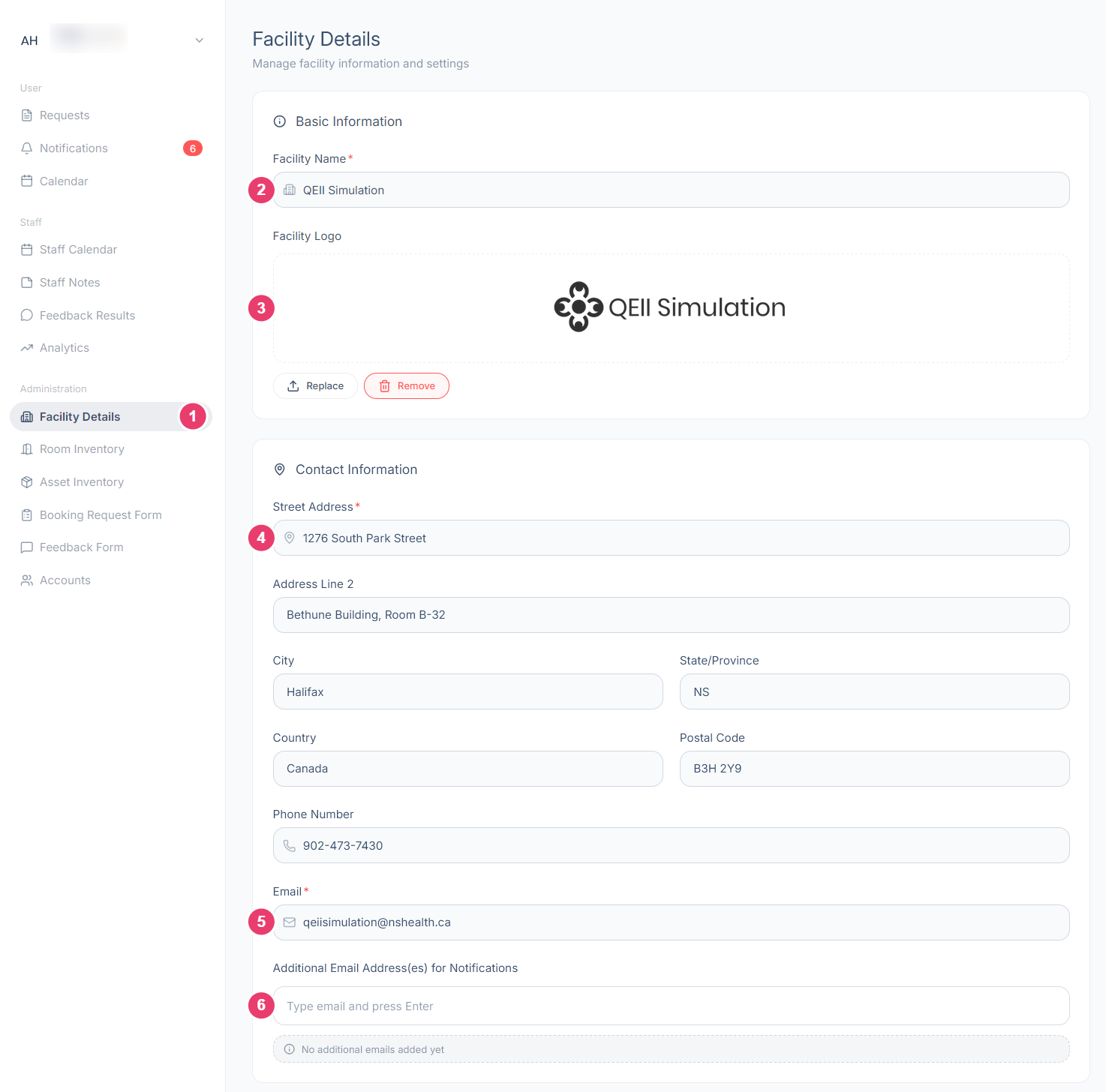
What each area does
Hours of operation
Set the hours your facility is available for booking requests. Each day has a switch and a start and end time.
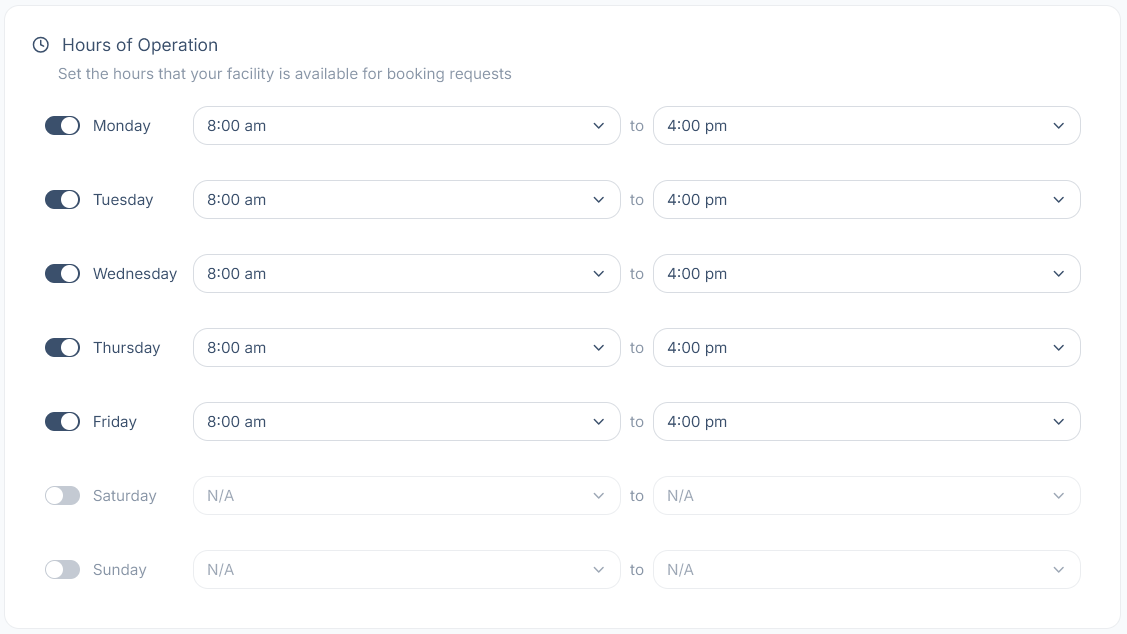
- Switch a day on to take bookings on that day, or off to close it. A closed day shows N/A.
- For each open day, choose the opening time in the first box and the closing time in the second.
Analytics also uses these hours to work out room utilization, so keeping them accurate keeps your reports accurate.
Booking restrictions and emails
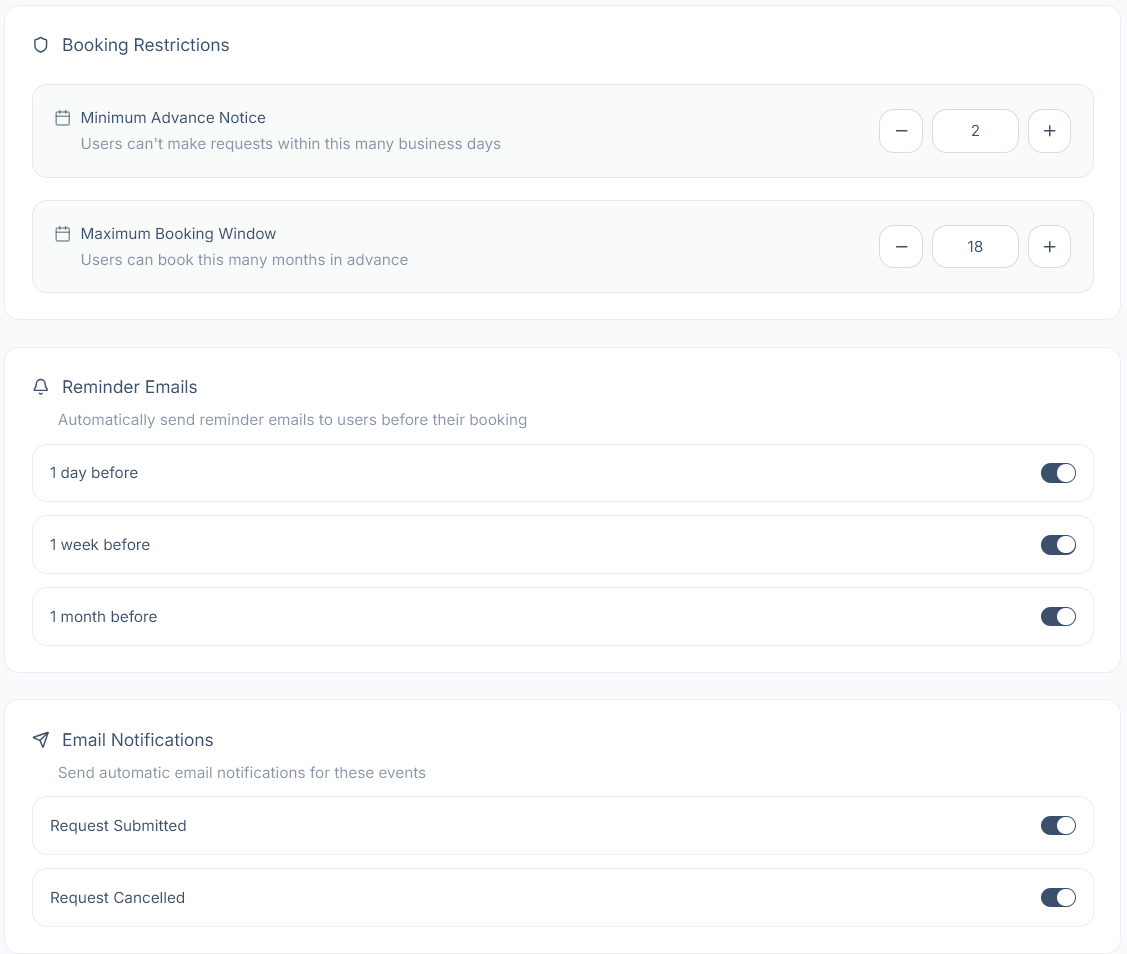
Use − and +, or type a number, to set each booking restriction.
- Minimum Advance Notice: How many business days ahead a request must be made. With 2, nobody can request a session for today or the next two business days, which gives your team time to prepare.
- Maximum Booking Window: How many months ahead people can book. Requests further out than this are not allowed.
Reminder Emails go to requesters automatically before their booking. Switch on any combination of 1 day, 1 week, and 1 month before.
Email Notifications choose which events send an automatic email. Switch Request Submitted and Request Cancelled on or off as your team prefers.
Saving your changes
When you have finished, select Save Changes at the bottom of the page. Nothing takes effect until you do. Cancel discards your edits and keeps the settings as they were.
Chapter 7 · Administration
ContentsRoom Inventory
Room Inventory is where you list the spaces people can book. Rooms are grouped into room types, such as a sim bay or a skills lab, and each type holds one or more actual rooms. Requesters choose a room type when they book, and theSimCal uses each type’s capacity and set-up times to find space that fits. Open it from Room Inventory in the sidebar, under Administration.
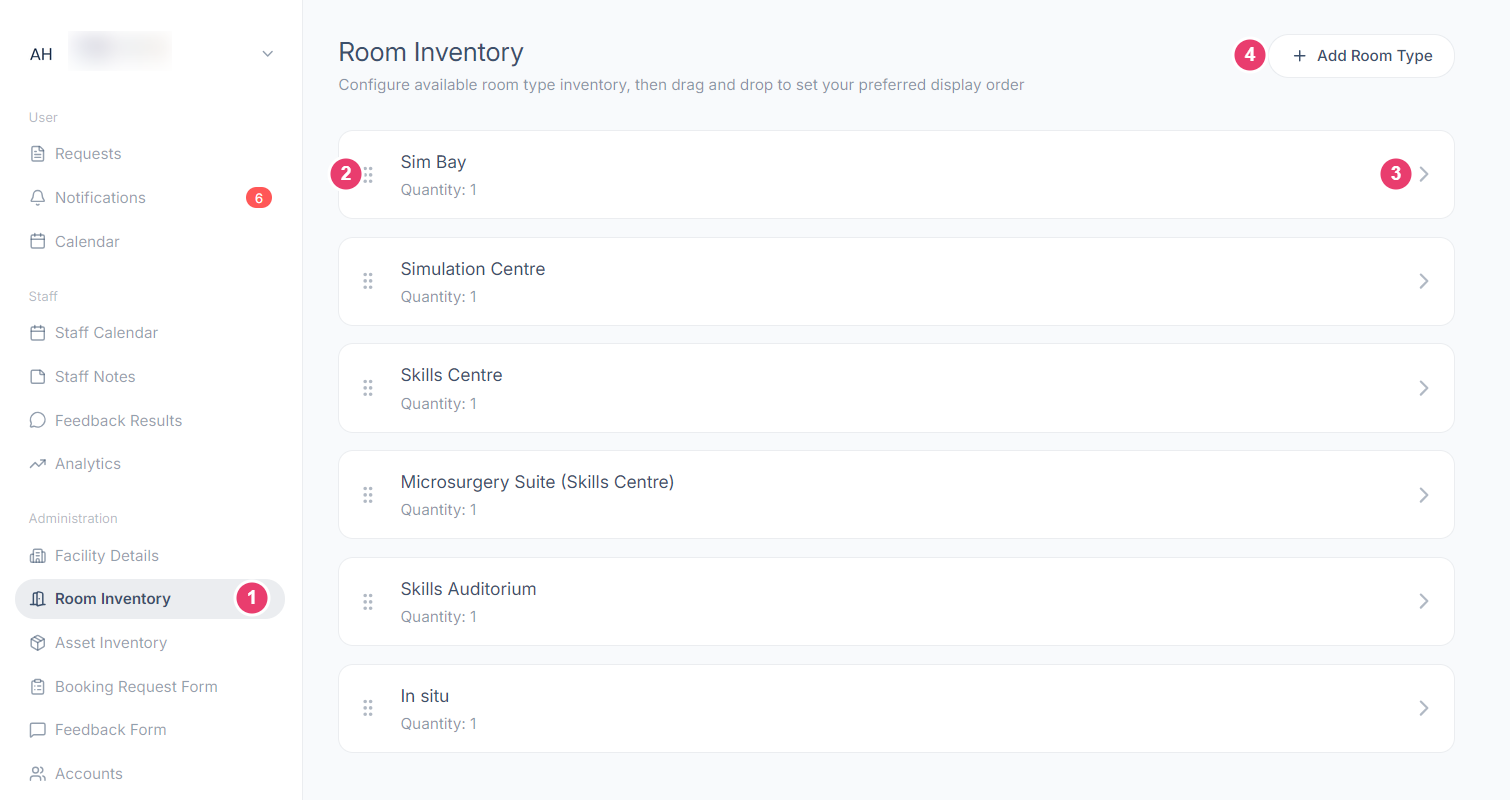
What each area does
Adding a room type
Select Add Room Type in the top right corner. A panel opens on the right. Fill in each section from the top.
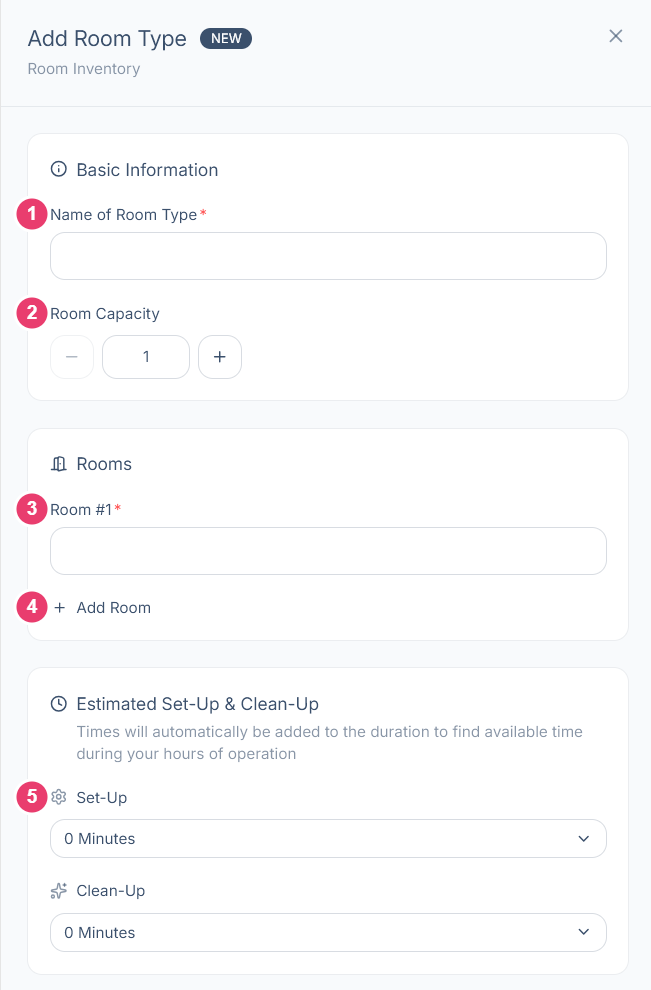
Add a description and photo, covered below, then select Create Room at the bottom of the panel. Cancel closes it without adding anything.
Set-up and clean-up are added to every booking automatically. For example, a two hour session with 30 minutes either side holds the room for three hours, and theSimCal only offers times that fit inside your hours of operation.
Description and photo
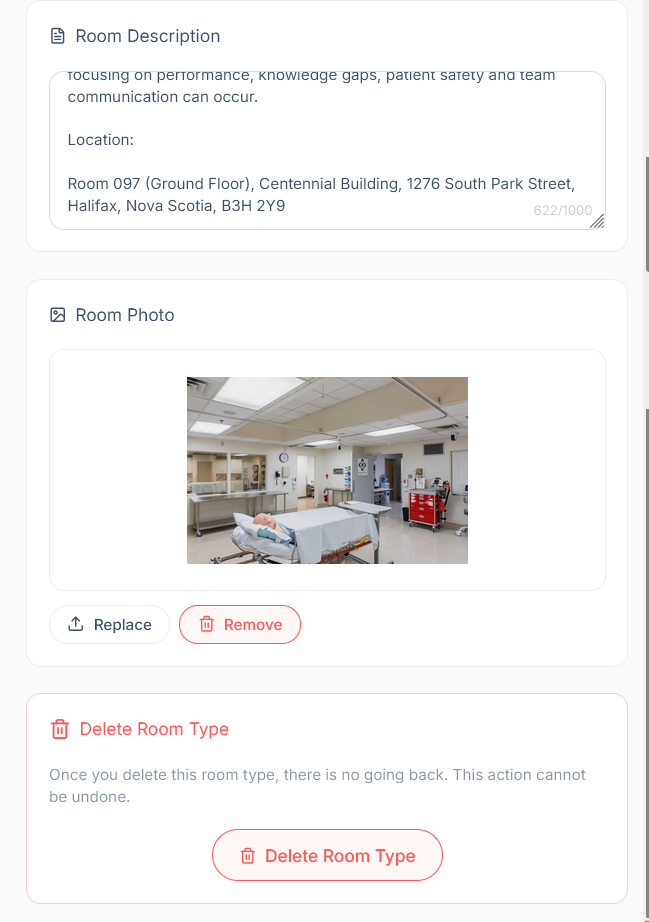
Room Description tells requesters what the room is for and where to find it. It holds up to 1,000 characters. A short summary of what the space suits, followed by the building, floor, and room number, is usually enough.
Room Photo helps people recognize the space. Select the upload area, or drag an image onto it. A landscape photo 1,280 pixels wide by 960 tall works best. On an existing room type, use Replace or Remove.
Editing and deleting
Select a room type in the list to open its Edit Room Type panel. It has the same sections as a new room type, filled in with the current details. Change what you need, then select Save Changes at the bottom of the panel. Cancel closes it and keeps the details as they were.
To remove a room type completely, scroll to the bottom of its panel and select Delete Room Type.
Chapter 8 · Administration
ContentsAsset Inventory
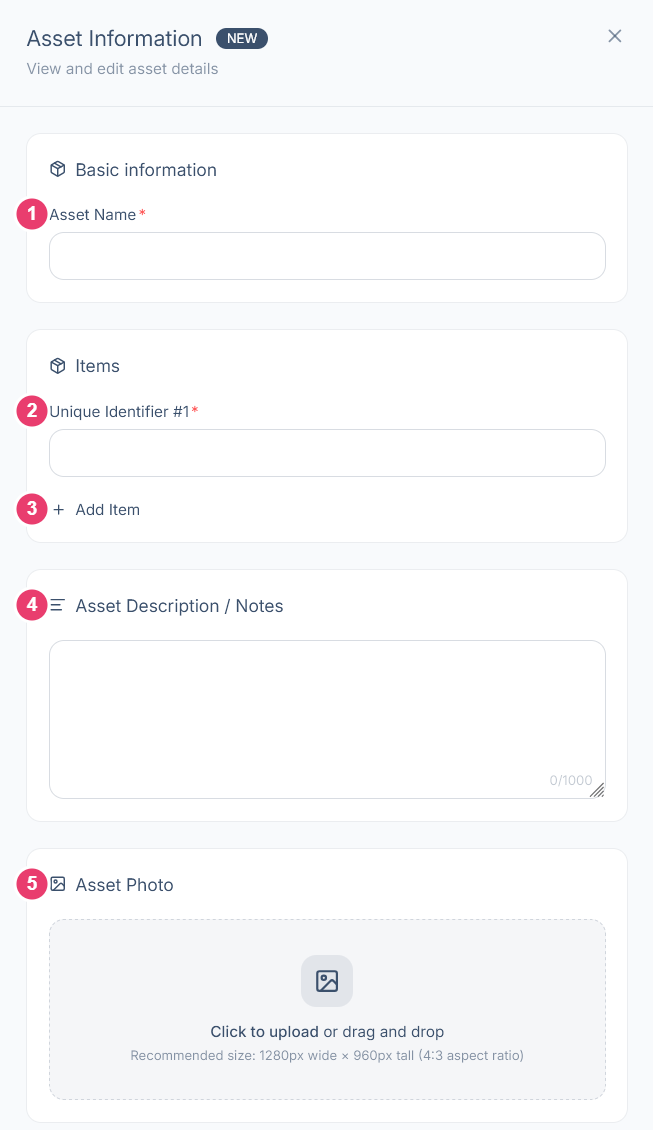
Asset Inventory lists everything besides rooms that a session can need: the people who run sessions, such as sim technicians and educators, and the equipment they use, such as manikins and task trainers. Once an asset is listed here, it can be assigned to bookings so nothing is double booked, and its hours appear in Analytics. Open it from Asset Inventory in the sidebar, under Administration.
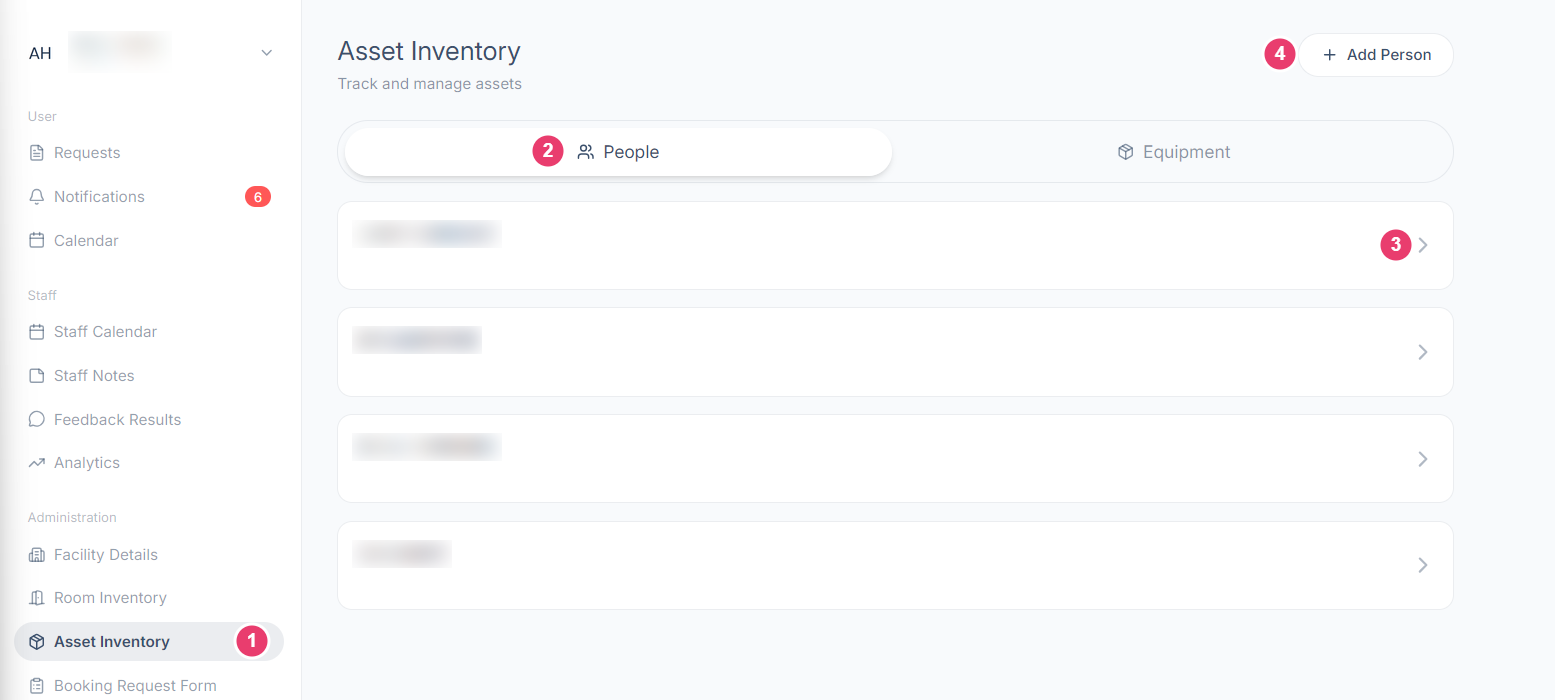
What each area does
Adding a person
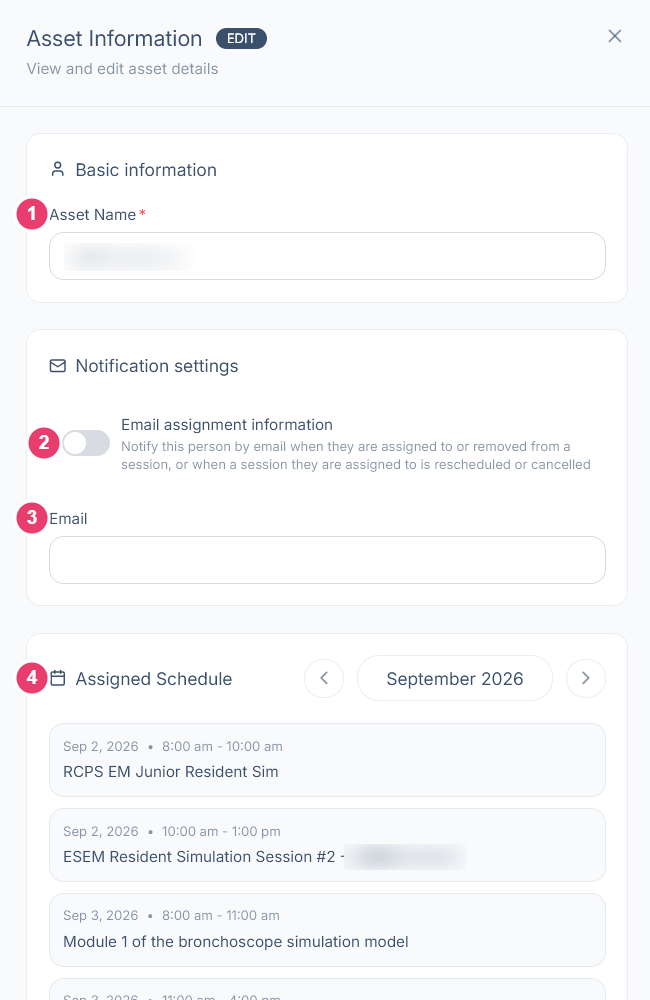
Select Add Person on the People tab. Enter their name under Asset Name, set up their notifications if you want them, then select Create Person. Cancel closes the panel without adding anyone.
Equipment
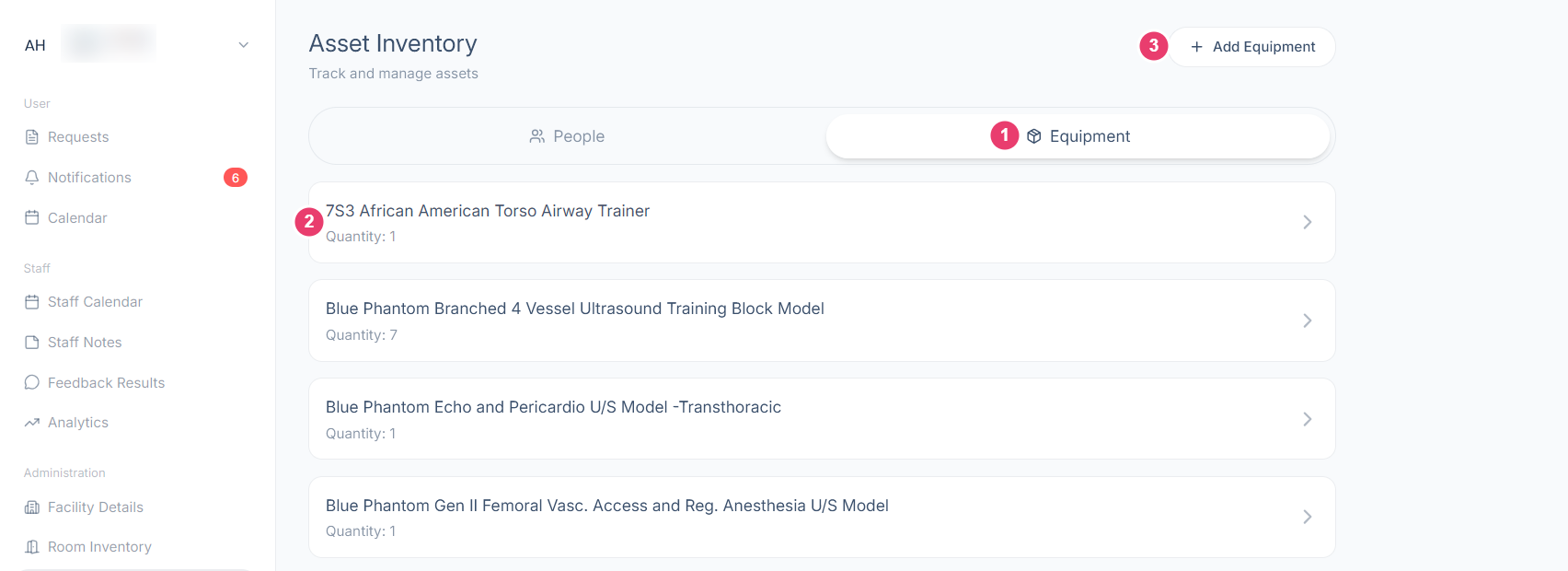
The Equipment tab lists every type of equipment your center books.
Adding equipment
Select Add Equipment at the bottom of the panel to add it, or Cancel to close the panel without adding anything.
Editing and deleting
Select any person or equipment type to open its details. Change what you need, then select Save Changes at the bottom of the panel. Cancel closes it and keeps the details as they were.
To remove an asset completely, scroll to the bottom of its panel and select Delete Person or Delete Equipment.
Chapter 9 · Administration
ContentsBooking Request Form
The Booking Request Form is where you add your own questions to the booking process. Everything you build here appears on the last step of a booking request, Step 4: Details, after the standard questions every request already asks. Open it from Booking Request Form in the sidebar, under Administration.
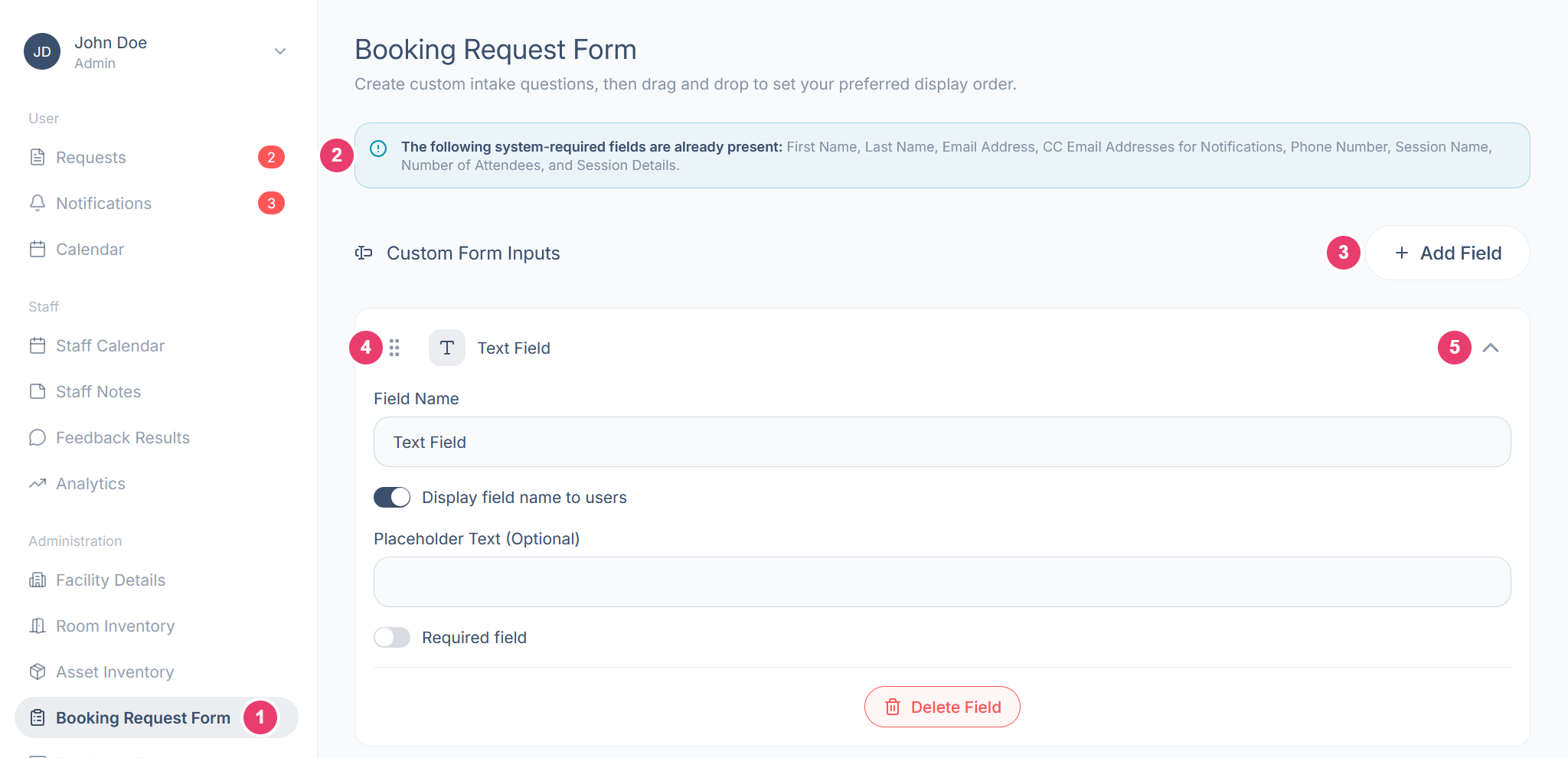
What each area does
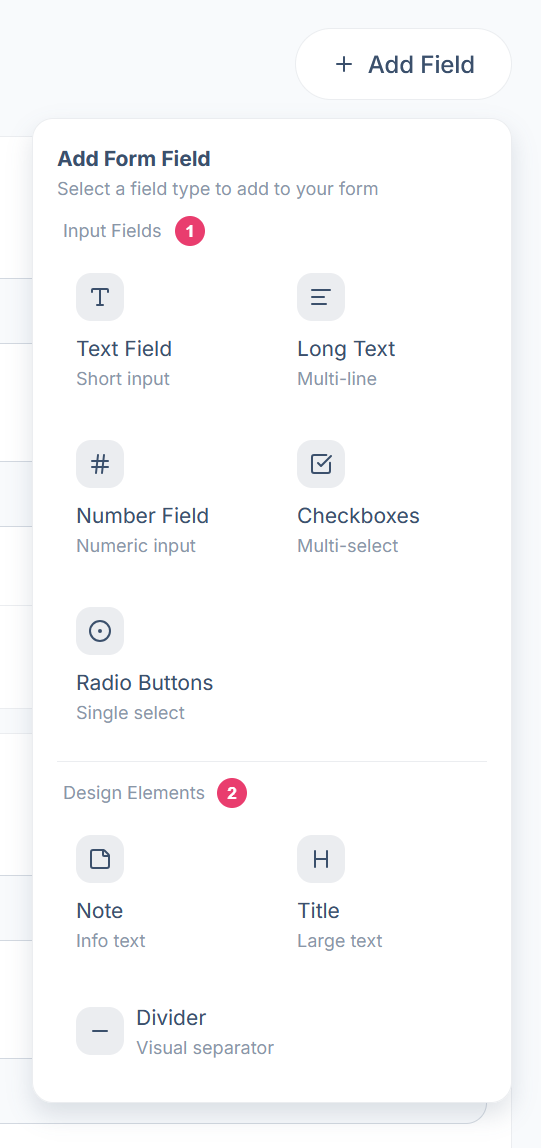
Adding a field
Select Add Field, then choose a type. It is added to the bottom of the list, ready to set up.
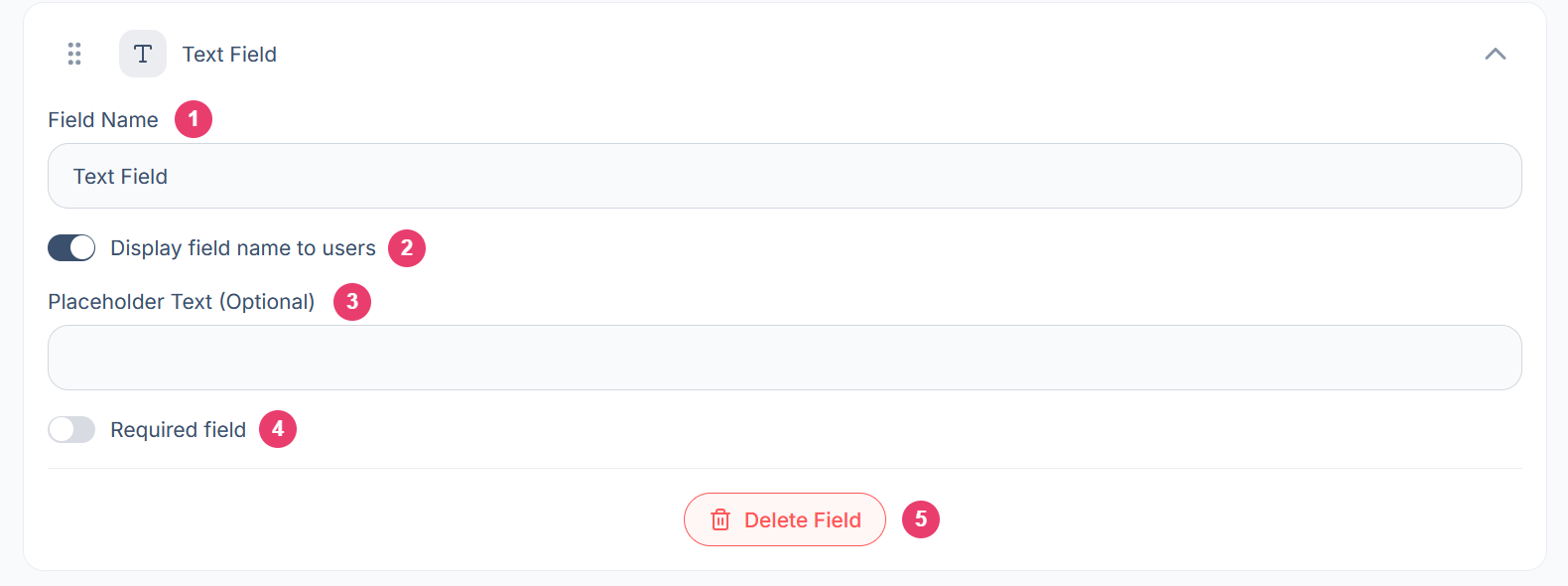
Setting up a field
Every input field has the same core settings. The Text Field below shows them all.
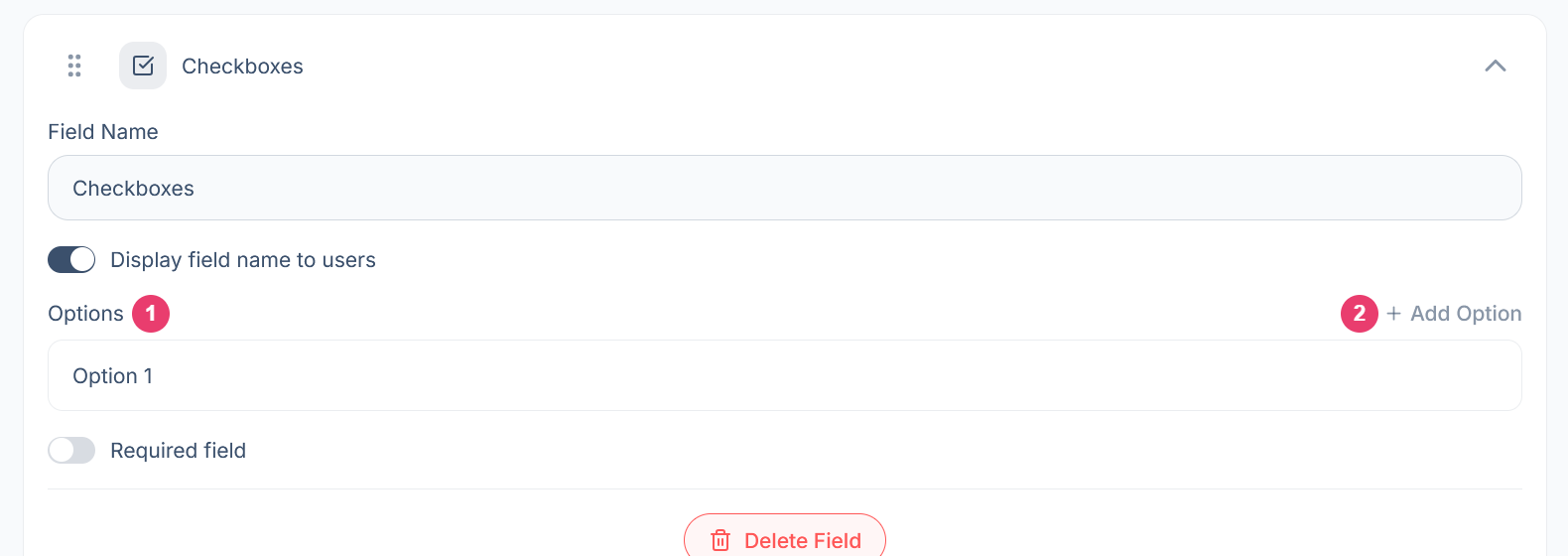
Checkboxes and radio buttons
Checkboxes and Radio Buttons have the same settings as other fields, plus a list of options for the requester to choose from.
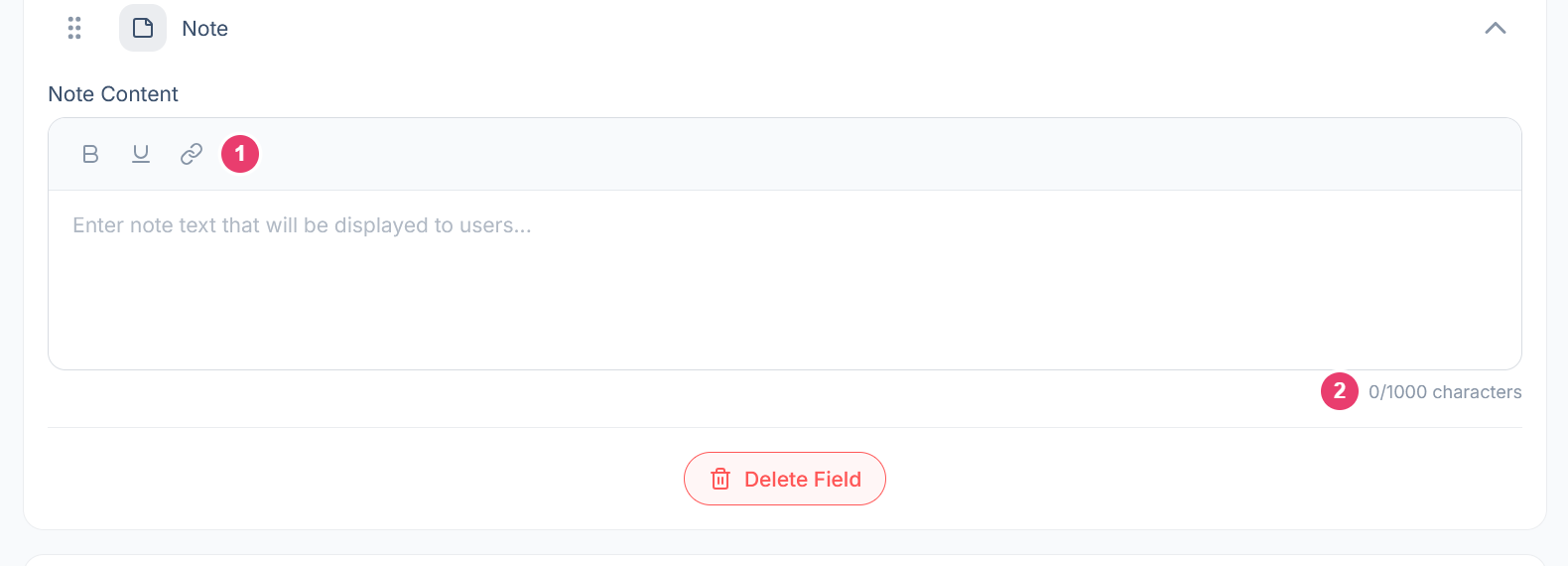
Notes, titles, and dividers
A Note holds information text for the requester, up to 1,000 characters.
A Title has one setting, Title Content, for the heading text. A Divider has no settings. Drag it to where you want the break.
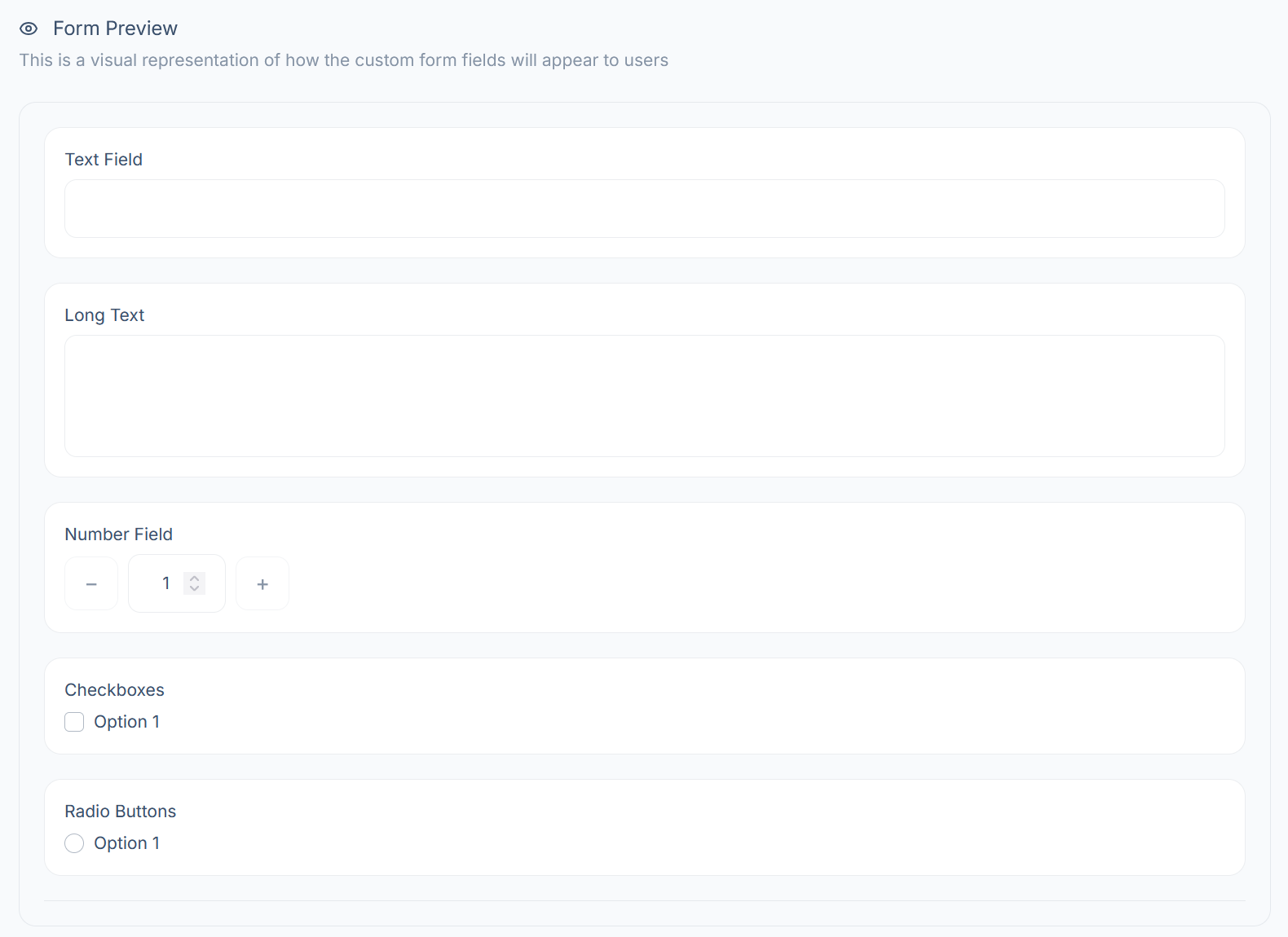
Previewing the form
Below your fields, Form Preview shows the form exactly as requesters will see it on Step 4. It updates as you add, edit, and reorder fields, so check it before you finish.
Saving and deleting
As soon as you make a change, Save Changes and Cancel buttons appear. Select Save Changes to update the form requesters see, or Cancel to undo everything since your last save.
When you select Delete Field, a box asks you to confirm. Select Delete Field again to remove it, or Cancel to keep it.
Chapter 10 · Administration
ContentsFeedback Form
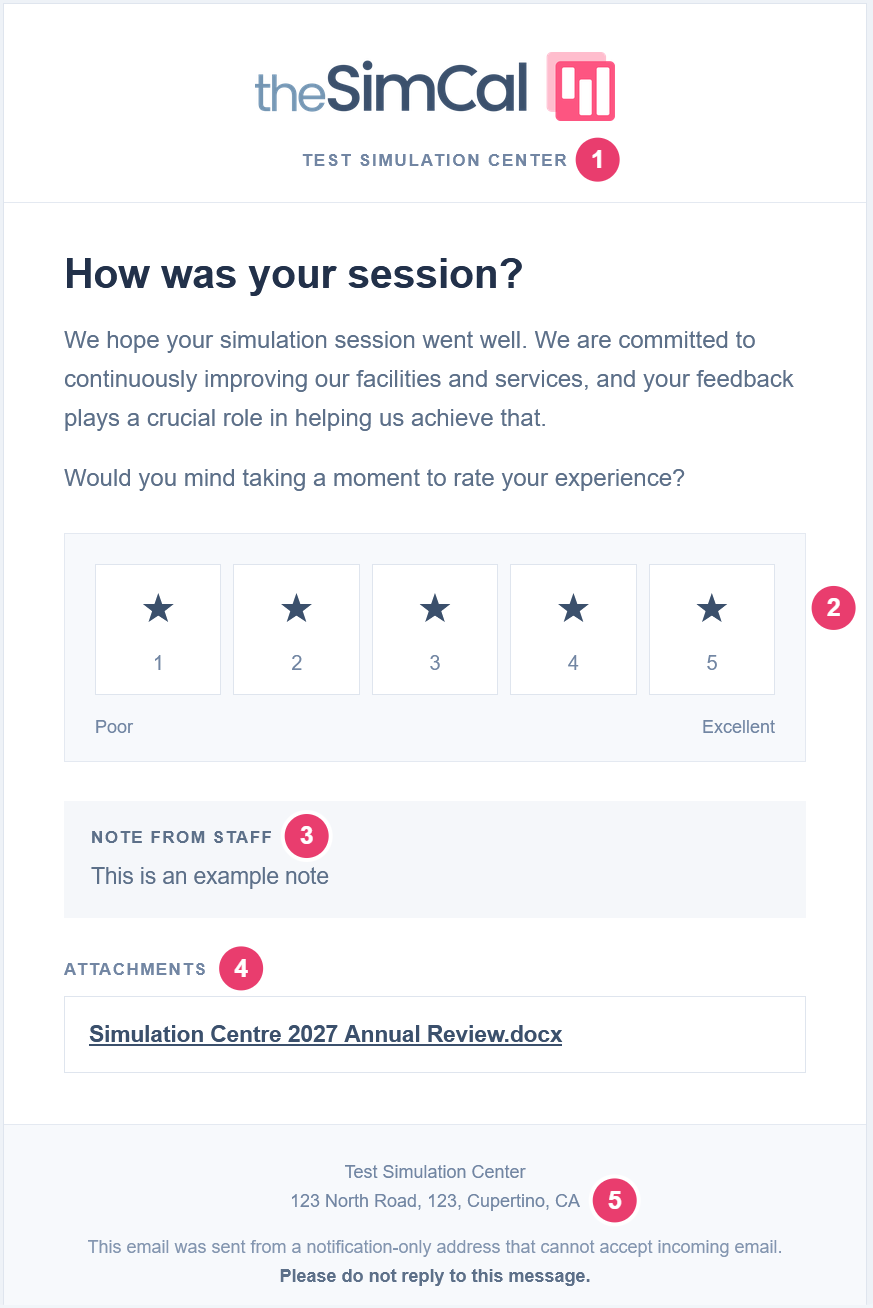
When a session ends, it is marked Completed automatically, and theSimCal can email the requester a short survey asking them to rate their experience. The Feedback Form is where you switch that email on and add your own note and files to it. The ratings you receive appear in Feedback Results. Open it from Feedback Form in the sidebar, under Administration.
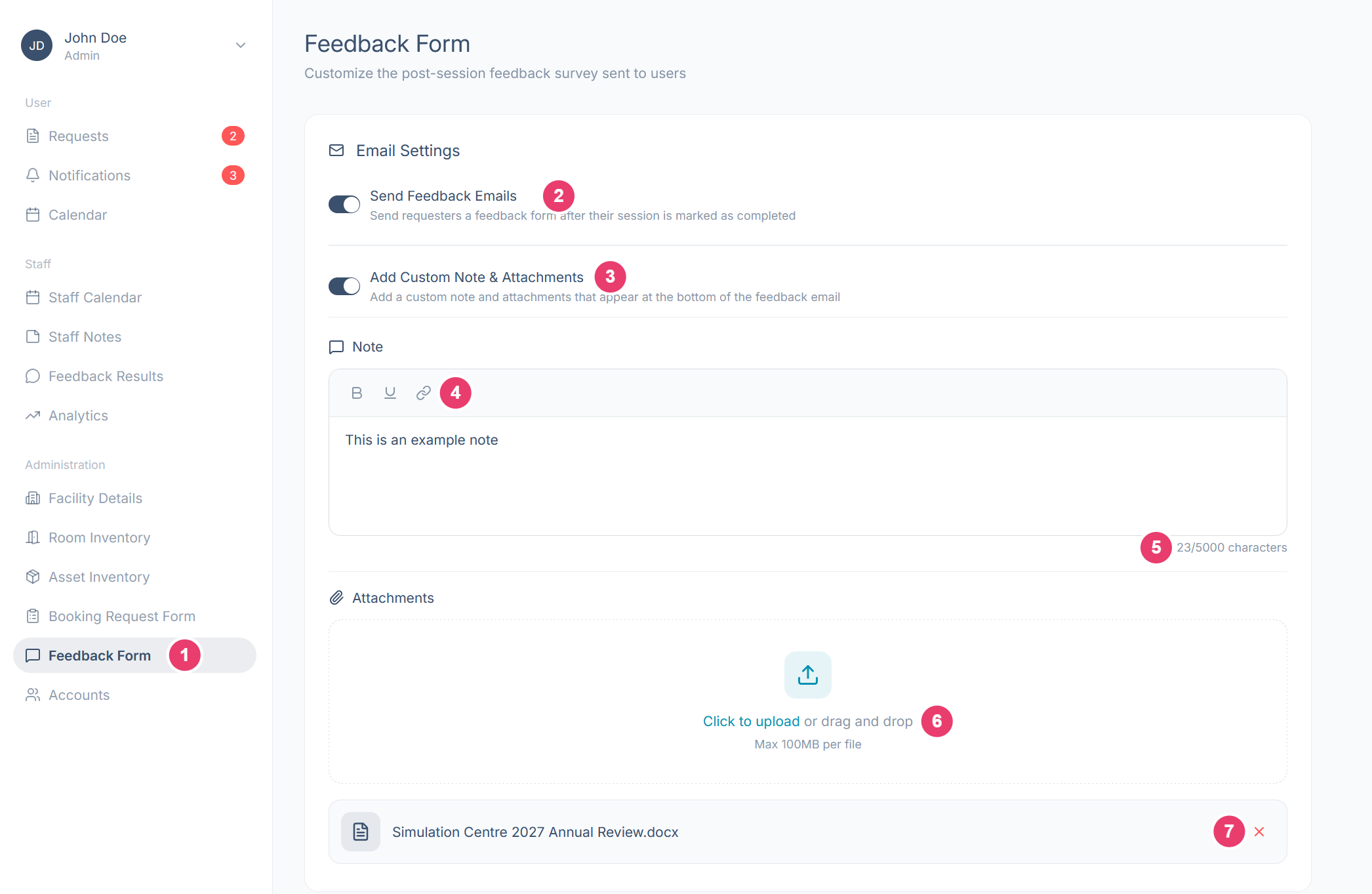
Email settings
Email preview
Below the settings, Email Preview shows the email exactly as requesters will receive it. It updates as you change the note and attachments. Apart from those two, the email’s wording is set by theSimCal and cannot be changed.
Saving your changes
As soon as you make a change, Save Changes and Cancel buttons appear. Select Save Changes to update the email, or Cancel to undo everything since your last save.
Chapter 11 · Administration
ContentsAccounts
Accounts lists everyone who can sign in to your center’s theSimCal, sorted by role. This is where you add admins and staff, change what someone can access, and remove accounts. Open it from Accounts in the sidebar, under Administration.
The three roles
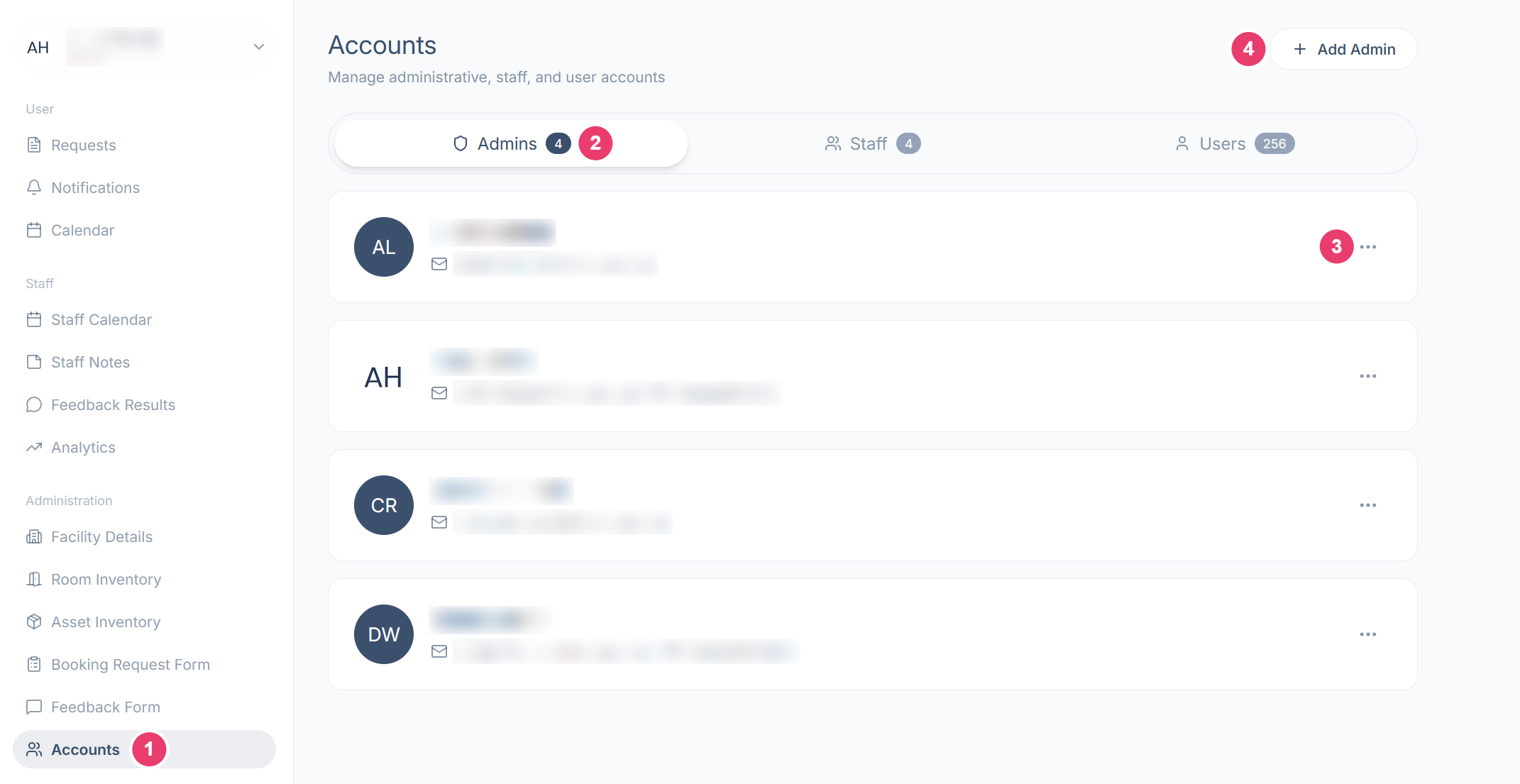
What each area does
Each account shows the person’s name, email address, and phone number. Phone numbers are optional, so they only appear if the person added one to their profile.
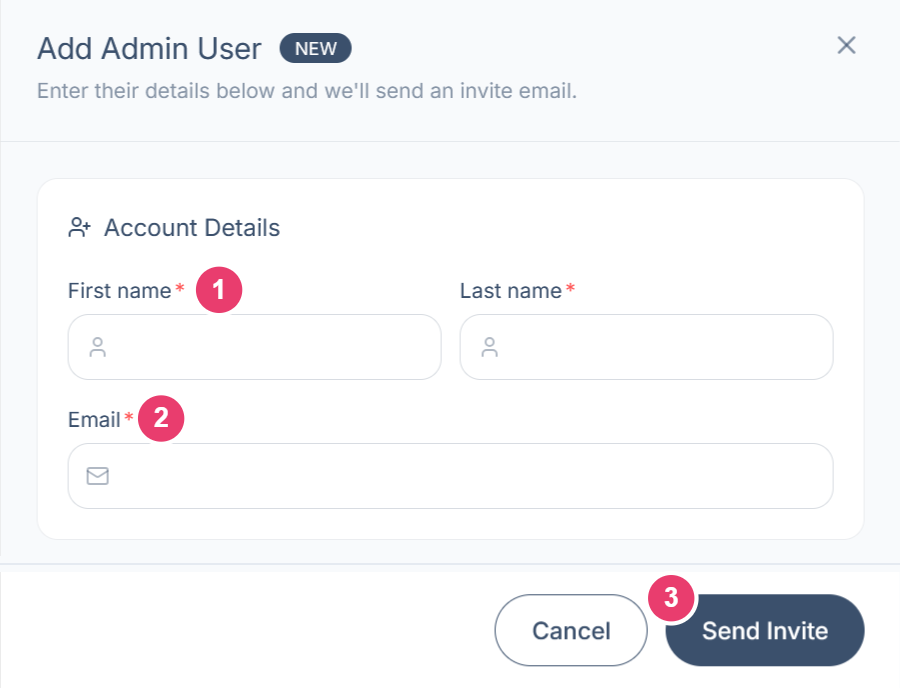
Adding an admin or staff member
Select Add Admin on the Admins tab, or Add Staff on the Staff tab.
Downloading user emails
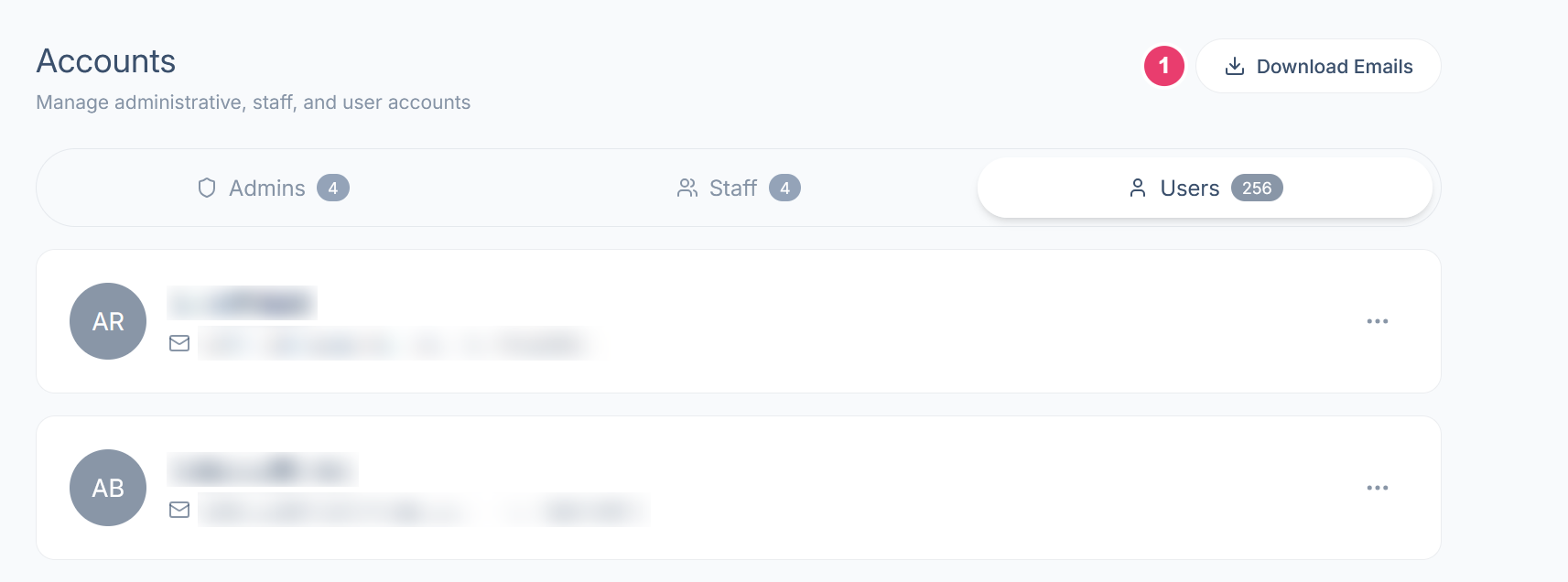
On the Users tab, the top-right button changes to Download Emails. Select it to download an Excel spreadsheet with the first name, last name, and email address of every user. It is handy for sending an announcement to everyone who books with you, such as by pasting the addresses into the BCC field of an email.
Changing a role or deleting an account
Select ••• on the account to open its Actions menu.
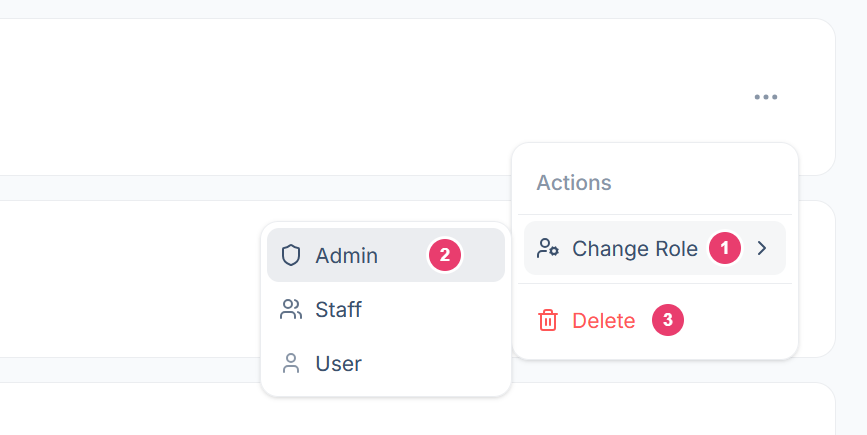
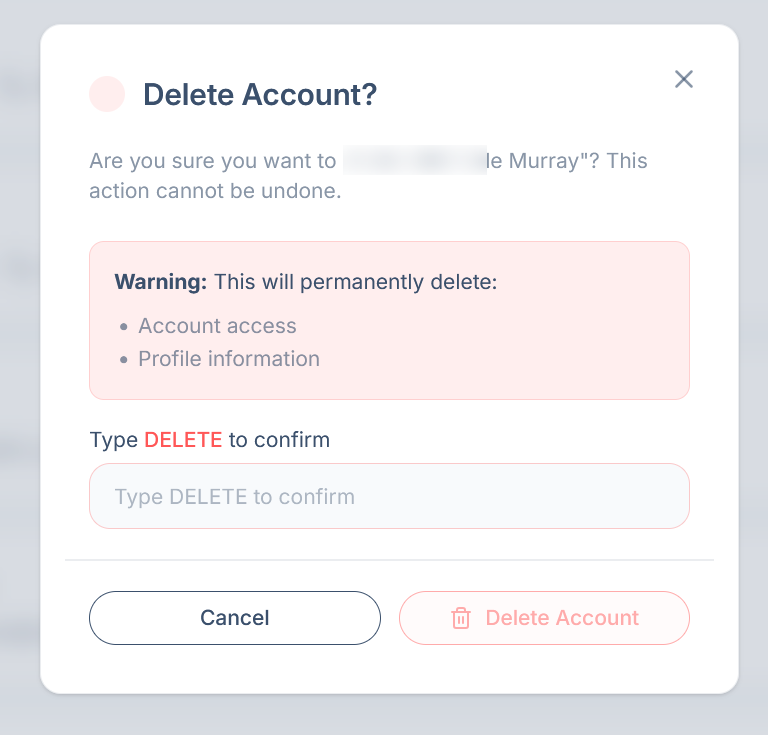
When you select Delete, a box asks you to confirm. Type DELETE into the field, then select Delete Account. Cancel keeps the account as it is.