theSimCal · User Guide
thesimcal.com · Last updated September 2026

Your Profile Settings
User guideLast updated September 1, 2026
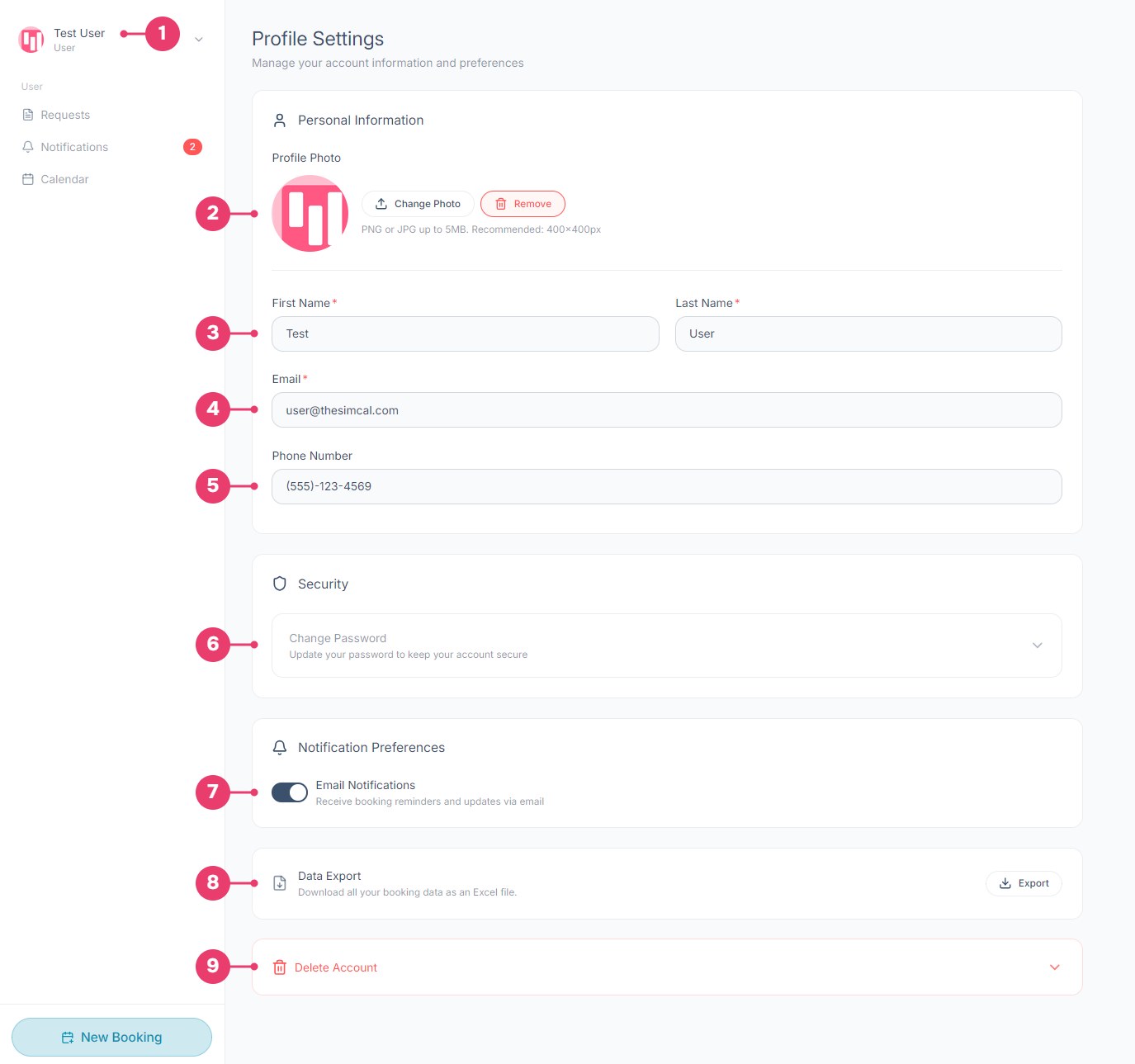
Profile Settings is where you manage your personal details, password, notifications, and data. Open it from the account menu in your control panel by selecting the dropdown arrow next to your name in the top-left corner and choosing ‘Profile’ (badge 1 below).
What each area does
1Account menu: Select your name to open the menu where Profile Settings lives, and to log out.
2Profile photo: Upload a PNG or JPG (up to 5 MB; 400×400 px recommended). Until you add one, your initials are shown.
3First and last name: Your name as it appears on bookings and to your center's administrators. Both are required.
4Email: Required. This is your sign-in address and where confirmations, reminders, and updates are sent.
5Phone number: Optional. A contact number your center can reach you on about your sessions.
6Change password: Expand this panel to set a new password.
7Email notifications: Your center's administrators decide when email notifications go out. If you'd rather not receive them, you can turn them off here.
8Data export: Select Export to download all your booking data as an Excel (XLSX) file, useful for your own records or reporting.
9Delete account: Expand to permanently remove your account.
Warning: Deleting your account is permanent and can't be undone. Export your booking data first if you want to keep a copy.
Good to know
- Saving your changes: when you edit any field, Save Changes and Cancel buttons appear. Select Save Changes to keep your edits, or Cancel to discard them.
- Required fields are marked with a red asterisk (*).
Have an idea? Spotted something that could work better? Share it on our feedback board and vote on suggestions from other centers.